The Editor
Usage Finder & Duplication
Table of contents
Introduction to the context menu
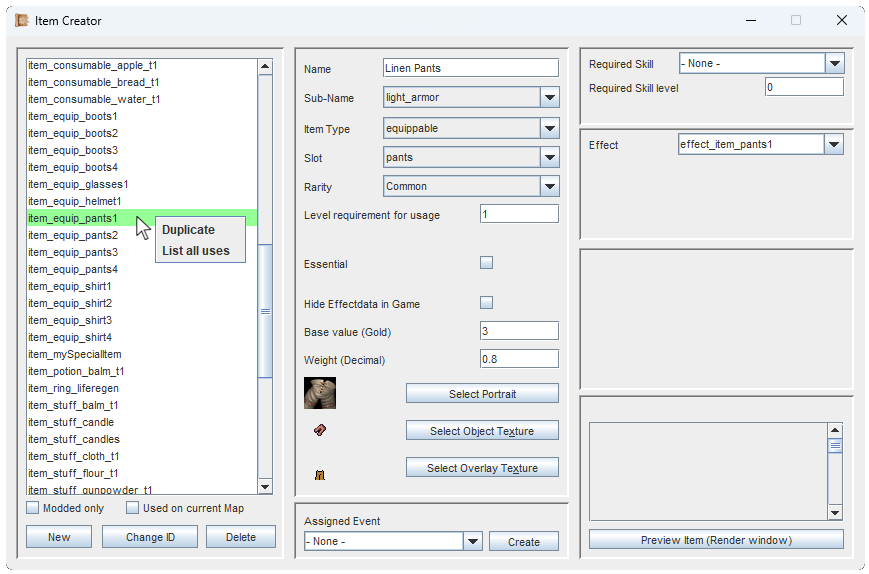
Right-clicking i.e. an Item you have created, offers you some context options.
Things you create in the Editor appear in their respective lists. You can right-click their list entries for additional, powerful context options.
This works for everything with an ID:
Abilities, Animations, Attributes, Crafting recipes, Crafting stations, Dialogues, Effects, Entities, Events, Game variables, Items, Maps, Music, Personalities, Projectiles, Quests, Skills, Sounds and Trading lists.
Usage Finder
The Usage Finder is a powerful and extremely useful tool.
Imagine the following situation: You have created a unique Item, that only exists once, and its hidden on a Map.
After 3 months, you would like to change to location of the item, but you have hidden it so well, you can't find it yourself anymore.
Wouldn't it be nice to have some functionality to tell you all the locations, where you have placed/used/mentioned this Item?
This is what the Usage Finder does. It finds all implementations of the Item, Ability, Map, Effect and more!
Better yet: It can take you directly to the source.
Added an Ability via an Event, but can't find that Event anymore? Equipped an Entity with a helmet, but don't remember what Entity it was? Made multiple entry points to a Map, but you don't know how many you have total?
Its easy to find out!
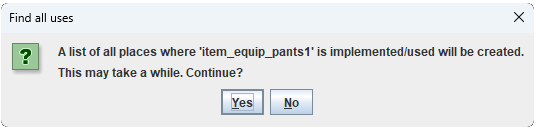
This confirmation window just makes sure you know about the waiting times and the keywords.
Clicking on the context menu option 'List all uses' will present you this confirmation window.
Looking for all locations can take some time, so click on 'Yes' and give it a second or two. (If it freezes, be patient. That means you found a lot of uses).
Boom, you receive a fully detailed list of all occurrences.
In the example image to the right, we can see that the Item has been used inside of an Event, is in the inventory of an Entity, is equipped by another Entity, is placed on a Map and is also the end product of a Crafting recipe.
By default, clicking on any entry will take you directly to it's source.
If you don't care about the detailed explanations of each line, use the second checkbox to show a simplified list.
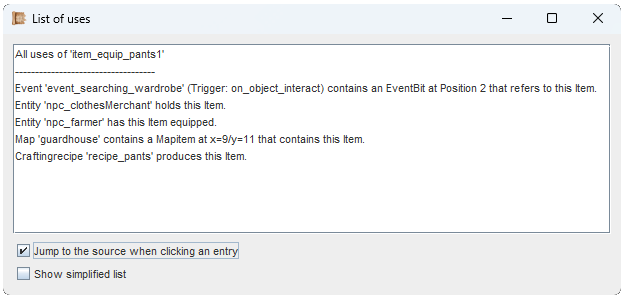
In this example, 5 occurrences have been found. Clicking on them would take us to their source.
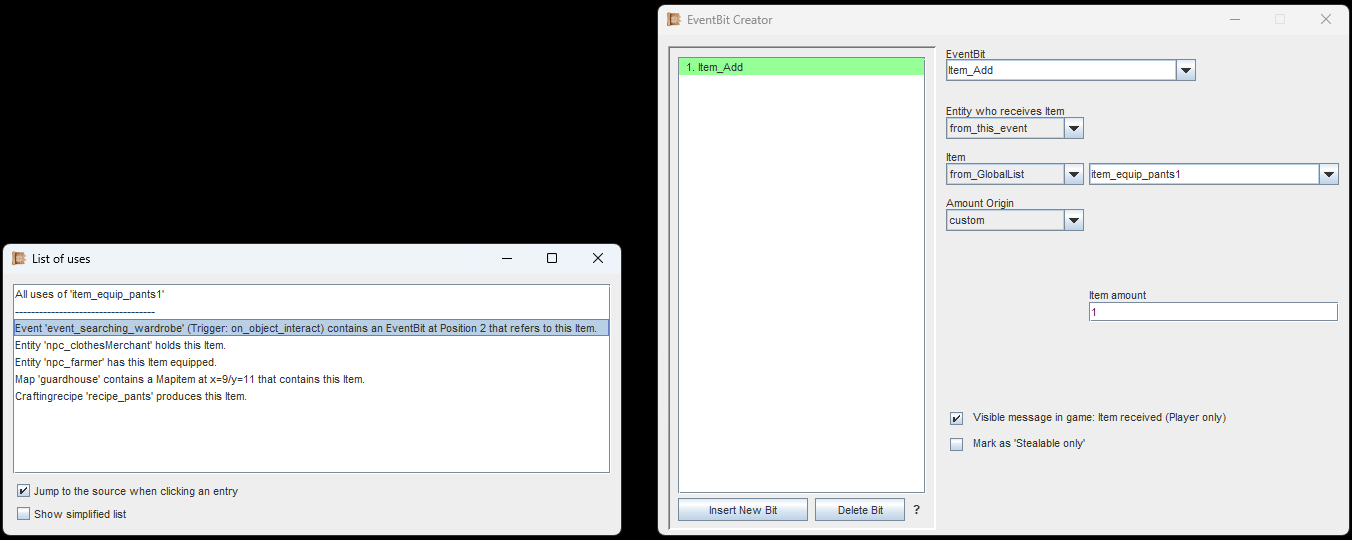
Clicking the entry opens the correct Event, with the correct Trigger and the EventBit that used the Item.
Here is an example for the first occurrence, which is an Event.
Clicking on it, will open the exact EventBit that refers to it. In the background, the Event itself is also opened.
We see the Item inside of the EventBit and we could now easily change it.
Another example: We click on an occurrence which refers to a Map.
This automatically loads the map, places the camera right on top of the Map-Item, opens the Map-Item and shows you what is inside.
Here we can easily make changes as well.
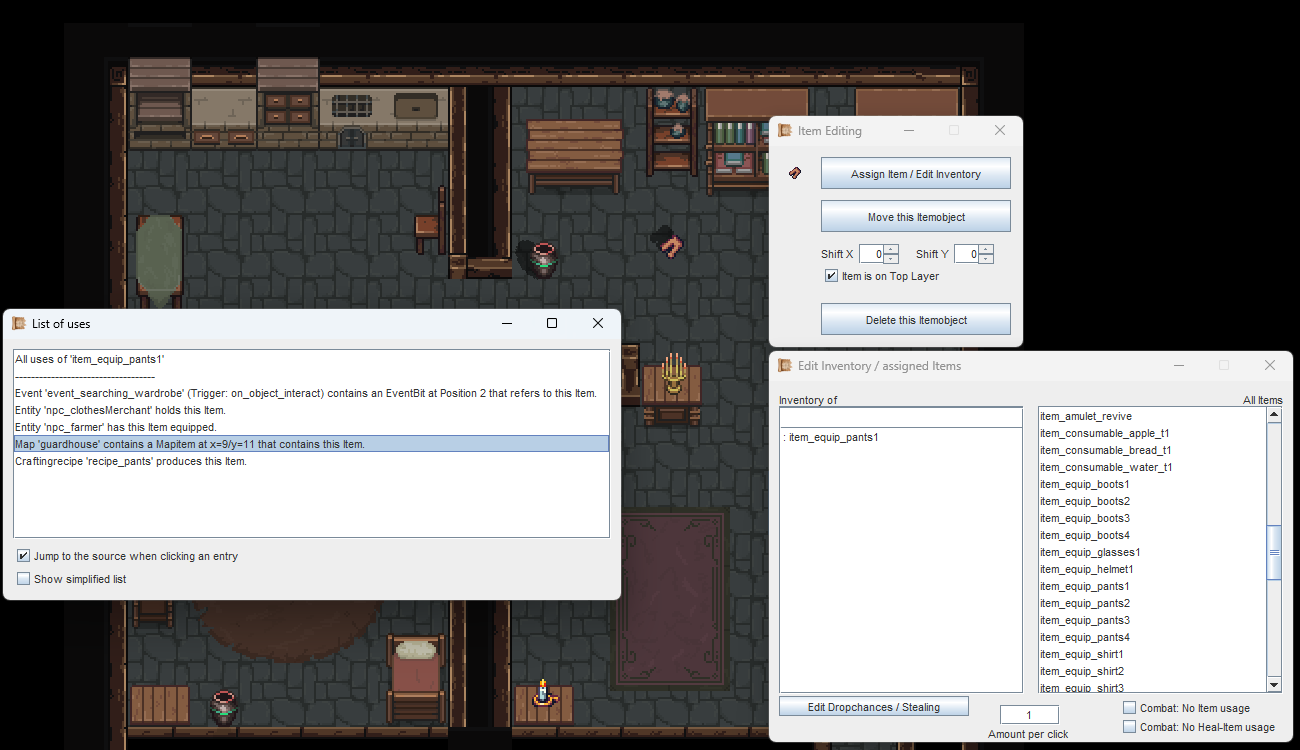
Clicking the entry loaded the Map it referred to, jumped to it and opened up all relevant windows.
Duplication
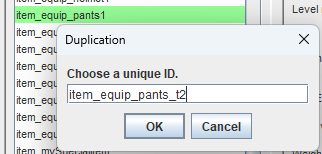
Selecting "Duplicate" in the context menu will prompt you for a new ID. And that's basically all you have to do.
This allows you to make an exact duplicate of basically anything.
Saves you time if you want to make a bunch of similar items with minor stat changes, like common clothing.