The Editor
Effects
Reminder: Hover your mouse over almost any input, field, selectionbox or button in the Editor to receive tooltips and examples.
Table of contents
The Effect Creator
Buffs and Debuffs
Create a new Effect and assign it a unique ID. From there on, the layout of the window depends on the type of Effect you are going to make. In our first example, we are going to focus on Buffs and Debuffs, which means: Causing damage or healing, either immediately or over time. Or raising/decreasing an attribute.
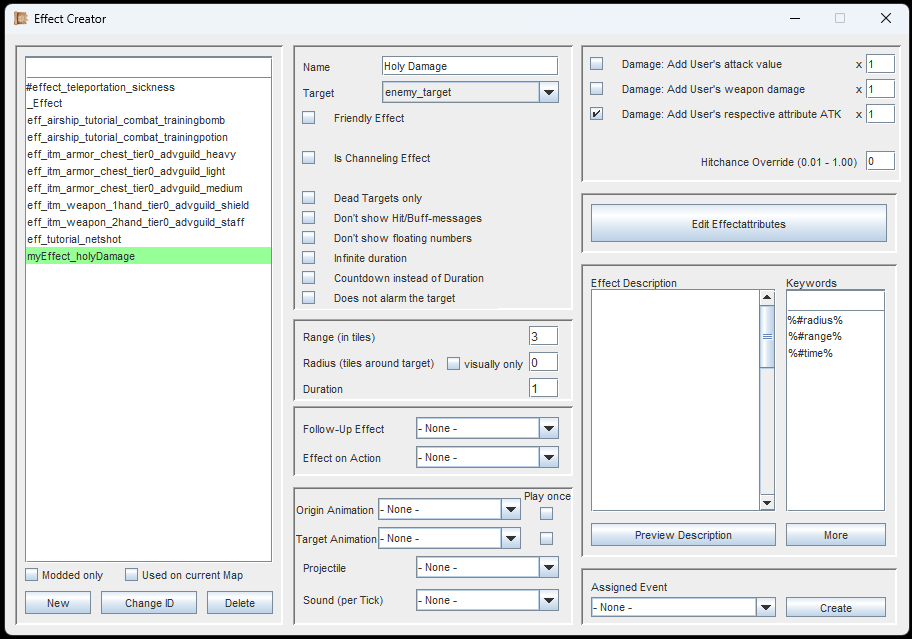
Depending on the selectet 'Target', different UI elements will be visible.
Name
Mainly needed for the in-game message box or when hovering a player portrait to see what buffs they currently have on them.
Target
Very important. This determines how the Effect is handled and how it is used. All possible types are explained a bit further below.
(Checkbox) Friendly Effect
Independently of what your target is, this marks the intention of the Effect, whether it 'buffs' or 'damages' in the message box. Also, friendly Effects have a 100% chance hitrate, unless this is overridden.
Is Channeling Effect
Channeling Effects are continuously cast until their duration is over, after which they cause another Effect on the target (see Follow-Up-Effects for that), or they can cause another Effect on the target each single turn. During channeling, the caster cannot attack, defend, use items or abilities. The caster can only continue or cancel.
Dead targets only
If this is active, the target must be dead, and you cannot target living targets. This is needed for e.g. revival effects, adding HP back to a dead friendly target.
Don't show Hit/Buff Messages
Shows nothing in the messagebox in game when the Effect hits the target.
Don't show floating numbers
Does not show the damage/healing numbers above the target when the Effect hits.
Infinite Duration
The Effect will continue forever and can only be stopped by an Event.
Countdown instead of Duration
Instead of having a duration in which the Effect does something each turn/minute, it will now count down to 0 and then cause the Effect only once.
Does not alarm target
When a hostile target is hit with this Effect, it will not get alarmed and not try to chase the player.
Possible Target Types

The target type of an Effect determines what it can be cast on, and how it's mechanics will work.
Self
The Effect hits the caster. No manual aiming required.
Friendly Target
Can aim at a friendly target (friendly relative to the casters faction).
Enemy Target
Can aim at a hostile target (hostile relative to the casters faction).
Ground
Can aim at a (walkable) ground tile.
Wall
Can aim at any wall tile.
FollowUp-Effect
A type of Effect that can't be cast directly. Must be assigned to another Effect, and will be caused when that first Effect is done (countdown) or ticks (duration or channeling).
Passive Effect
A type of Effect that can't be cast directly. Must be assigned to an Item or an Ability and will continuously give its Effects to the owner, until they unequip the Item or forget the Ability.
Effect-on-Action
A type of Effect that can't be cast directly. Must be assigned to another Effect, and will be caused when the holder of that first Effect does something to a target (e.g. either attacking a hostile target, or healing a friendly target). The Effect-on-Action will be applied to the target of the holder. Example: A buff causes you to also deal 5 points of fire damage on every attack. Or: A buff that causes you to heal your target by 10 HP, if you cast a friendly ability onto them.
Other Effect Parameters

Range, Radius, Duration and all kinds of other things you can adjust. This decides how the Effect plays out.
Range
The maximum range between the caster and the target, in tiles.
Radius
If higher than 0, the Effect will hit all surrounding applicable Entities, when hitting the target. It can also be set to 'visual only', then the radius is merely for show and only the Entity in the center is targeted.
Duration
How long the buff/debuff lasts. Effects are caused per turn/minute.
Follow-up-Effect
If you select a Follow-up-Effect here, it will execute when the current Effect ticks (duration or channeling) or the countdown reaches 0.
Effect-on-Action
If you select an Effect-on-Action here, it will be caused when the holder of the current Effect attacks/aids a target. Which one applies depends on the Effect-on-Action being friendly or not.
Origin Animation
If you select an Animation here, it will be played on the caster of the Effect when the Effect executes. If you only want it to play once when initially cast, select the checkbox next to it.
Target Animation
If you select an Animation here, it will be played on the target of the Effect when the Effect executes. If you only want it to play once when the target is initially hit, select the checkbox next to it.
Projectile
If you select a Projectile here, the Projectile will visually fly from A to B, and the Effect is executed on impact. Once Projectiles are involved, obstacles like walls play a role when aiming.
Sound (per Tick)
If you select a Sound here, it will be played each time the Effect is executed. E.g. a burning sound for an Effect that causes fire damage each turn. Keep in mind that the Animations can also have sounds included, so it may not be necessary to have sound in the Effect directly.
Effectattributes

Health (HP), Mana (MP), Energy (ENP), Strength, Precision, Defense etc. - These are all attributes. Most Effects simply raise or decrease them in some way. And this is configured in the 'Effectattributes'. Just click on the 'Effectattributes'-button in the Effect Creator.
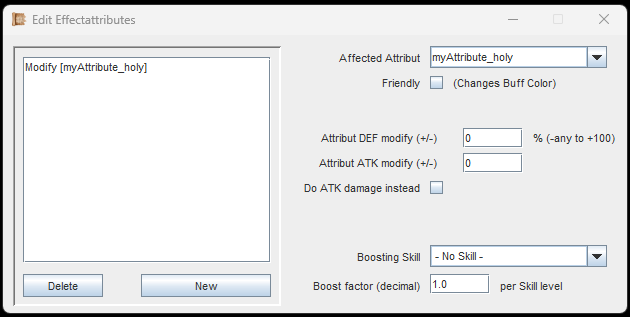
In this window we can determine what attributes the Effect will affect, damage, increase, heal etc.
Click on 'New' to add a new attribute, e.g. one that you made yourself. The first thing you can adjust is whether the attribute change you are causing is good or bad to the target, with the 'Friendly'-checkbox. This is mostly cosmetic, as it colors in the text when the player hovers their portrait and reads what attributes are affected.
For custom made 'Offensive and Defensive' attributes, the Effect can raise or decrease these values for the target.
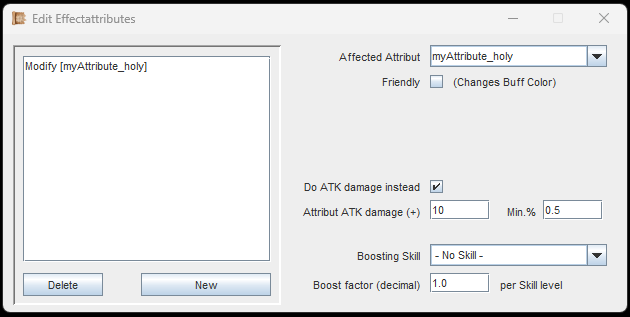
If you want to use the attribute to cause damage to the target's HP, you have to set a damage range.
If you want to use the selected attribute to 'Do ATK damage instead', that is also easily done. Just mark the checkbox, then put in a damage range with a maximum value and minimum percentage.
In the left image example, we would cause 5 - 10 points of Holy Damage to the target. These 5 - 10 points will be subtracted from the targets health, but the target might have resistance against it. (Also their 'Physical Defense' attribute counts for 10%).
Only if you cause damage to #HP, #MP or #ENP then the target's 'Physical Defense' attribute is fully taken into account.
If you raise or decrease primary and secondary attributes like strength, intelligence, precision, there are no resistances or defenses against that.
Lastly, you can also select a 'Boosting Skill' and a factor. The skill level of that skill will be multiplied with the factor and then added to the numbers you specified above. Example: Higher skill level in Light Magic increases the effectiveness of healing by 0.5 points per skill level.
Effect Descriptions
Every Effect can have a description, and Abilities and Items can source these descriptions from their Effect. The reason it is done this way is Dynamic Keywords. Instead of writing numbers into your description, you can use keywords that will show up as numbers in the game. And these numbers can change, well, dynamically with your character. It's super simple, just look at the example below.
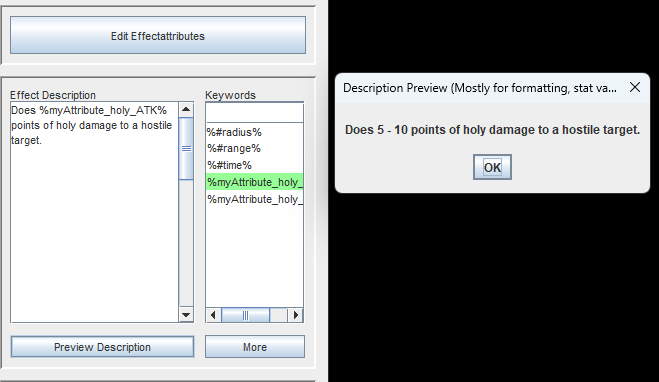
The Effect Description makes use of the keyword for Holy Damage (ATK).
The 'Holy'-Attribute we added in the previous section is doing 5-10 points of (holy) damage. We can now write our Effect Description and click on the Keywords to the right to insert them. With the 'Preview Description' we can see how the result will look like.
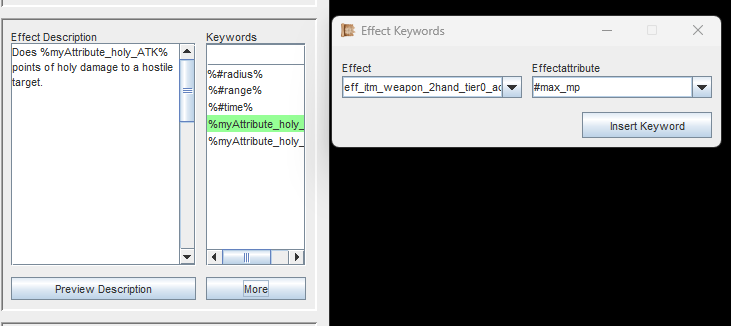
A keyword from a different Effect can be added via the 'More'-button.
We can also insert keywords from completely different Effects. In the example to the left you can see that by pressing the 'More'-Button, we can easily select any Effect and their attributes.
Why would we need this? Remember 'Follow-Up-Effects'. Your main Effect that has a Follow-Up-Effect can include that Effects numbers in its own description. More about that in the next section below.
Follow-Up-Effects
Follow-Up-Effects are Effects that are caused when their parent Effect is executed. An Example:
You cast the Ability 'Fireball'. The Effect of this Ability causes 10 points of fire damage on the target. This is just one single Effect. Simple.
Now imagine, that additionally you also want the target to start burning, causing 2 points of fire damage per turn, for 4 turns total. This must be done via the 'Follow-Up-Effect'. You simply create a new Effect, set it's target type as a 'Follow-Up-Effect' and then add it to the previous Effect (the Parent).
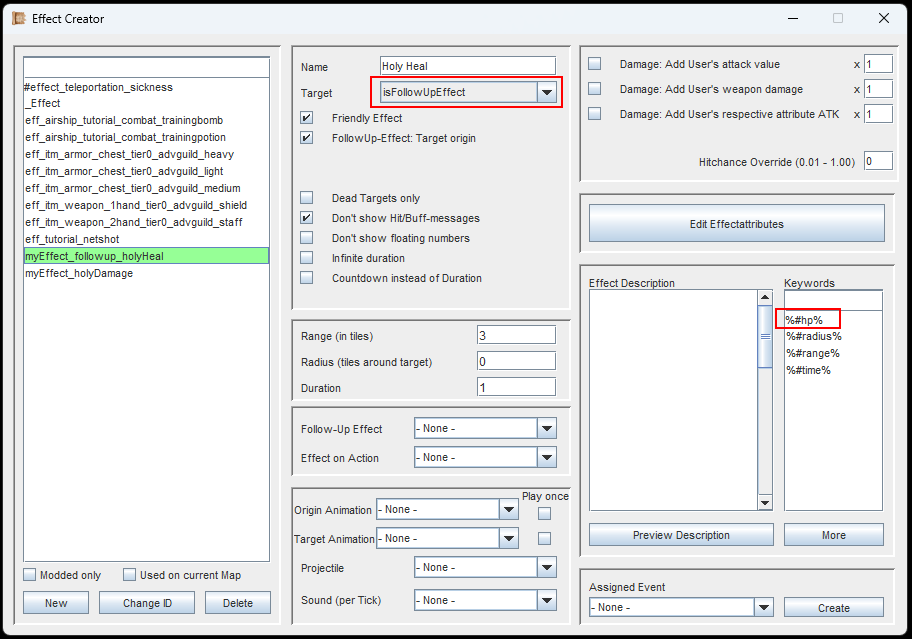
This Follow-Up-Effect targets the original caster of the parent Effect, and heals them.
In the image to the left you can see that we created a new Effect and gave it the target type 'Follow-Up-Effect'.
In the Effectattributes, an 'HP' increase was added, 3-6 points.
The checkbox 'Target origin' was checked. This way, the Follow-Up-Effect will target the original caster of the parent Effect.
We don't need to write a description here. Instead, we will refer to those 3-6 HP via the parent Effect.
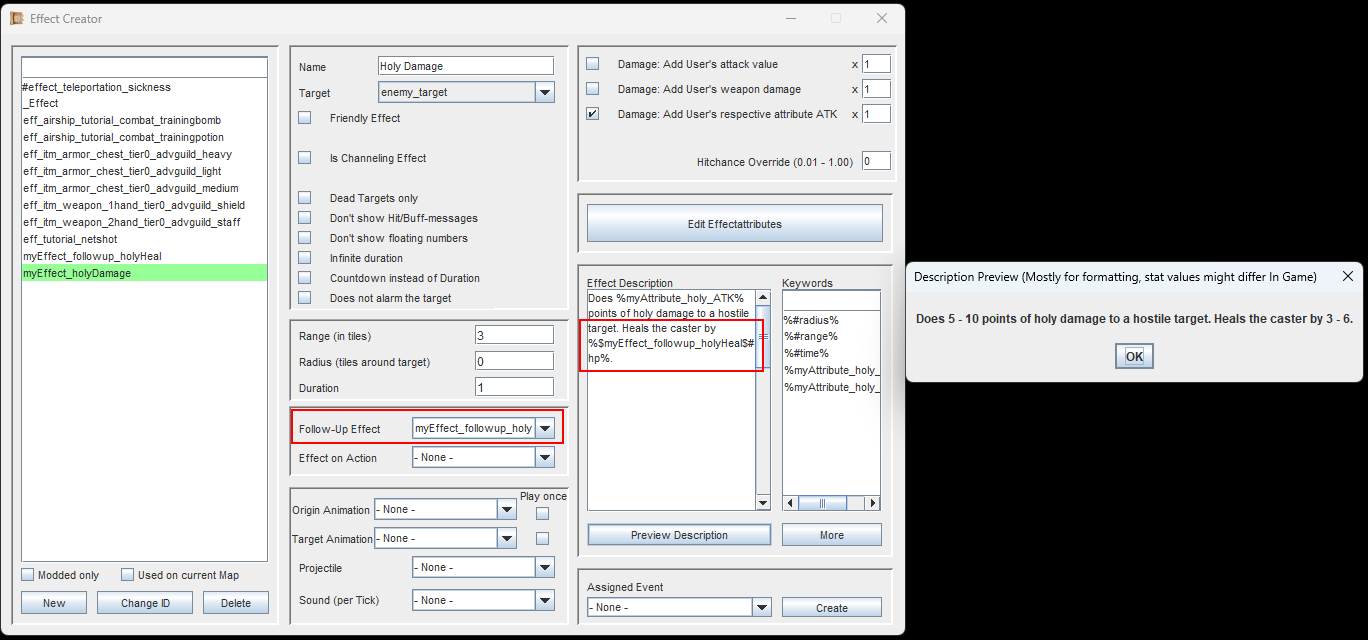
The original Effect now contains our new Follow-Up-Effect. It even refers to the HP-increase via a keyword that we got from the 'More'-button below the keyword list.
Now we go back to the original (parent) Effect. This is our 'Holy Damage' Effect from earlier, which causes Holy Damage to a hostile target.
We select our Follow-Up-Effect, and we can even refer to the Effectattributes of that Follow-Up-Effect via its keyword. Simply click the 'More'-button below the keyword list.
So with everything set, here is what happens, step by step:
- The player character uses an Ability that contains the 'Holy Damage'-Effect on a hostile target.
- The 'Holy Damage'-Effect has a duration of 1, so the damage (5-10 points of Holy Damage) is applied instantly.
- As the 'Holy Damage'-Effect has been executed, it will immediately launch its Follow-Up-Effect, which is our 'Holy Heal'.
- 'Holy Heal' targets the original caster, so in this case: The player character. It heals 3-6 HP.
- 'Holy Heal' does not have a Follow-Up-Effect on its own, so the chain ends here and the player character is done.
Passive Effects
Passive Effects can't be cast directly. They are assigned to an Item or an Ability and will continuously give their Effects to the owner, until they unequip the Item or forget the Ability.
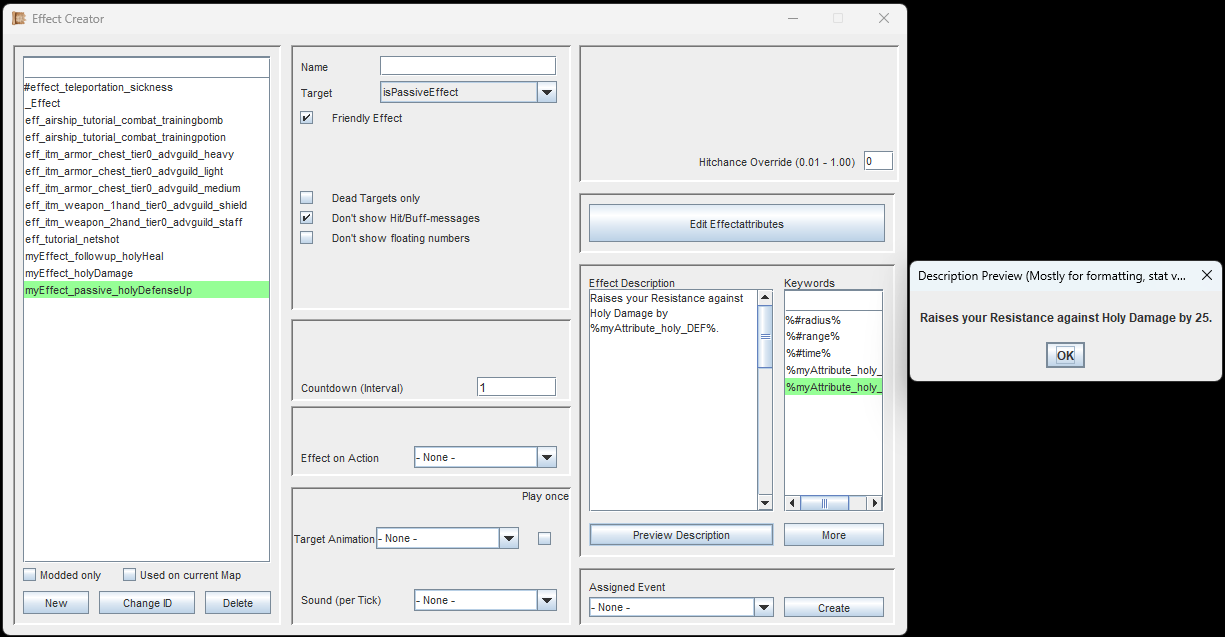
Passive Effects don't need a lot of parameters.
First we create a new Effect and set its target type to 'Passive'. In this case we want a friendly Effect, because we want this to increase the owners 'Physical Defense' attribute.
We also ticked the checkbox 'Don't show Hit/Buff messages'. Since the passive Effect is renewed every turn (duration = 1), we would otherwise get a message in our in game message box every turn that the Effect is applied. We avoid this by simply not showing those messages.
Then simply write the Effect's description and assign it to an Item or an Ability. Done.
Effect-on-Action
An Effect-on-Action is always applied to the target (hostile/friendly) of whoever is holding its parent buff.
Example:
You create a buff that is applied to a friendly target. This buff contains an 'Effect-on-Action'. Every time your friend attacks an enemy, the 'Effect-on-Action' is applied on that enemy. This could be e.g. a bit of fire damage.
Or in simple terms: While the original buff is applied, your every attack also causes some fire damage.
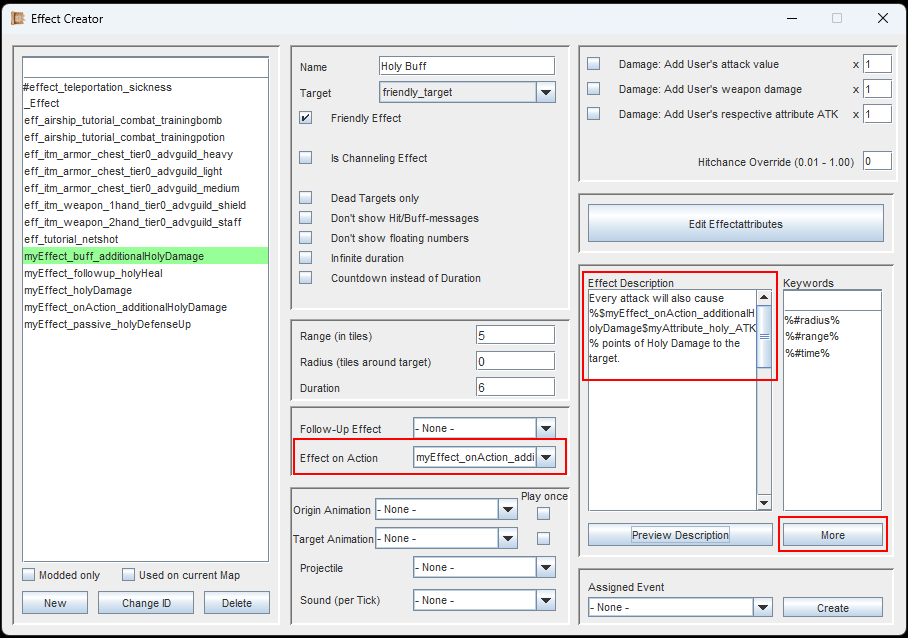
The Effect description of this Buff can state the numbers from the attached 'Effect-on-Action' via a keyword that we got from the 'More'-button below the keyword list.
First, we create a new Effect. This will be our friendly buff for a friendly target. It does not have any Effectattributes on its own, just a duration of 5.
We can now adjust the Effect Description, and add the 'Effect-on-Action' in the dropdown in the middle. We can refer to the Effectattributes of that 'Effect-on-Action' via its keyword. Simply click the 'More'-button below the keyword list.
Paragraph
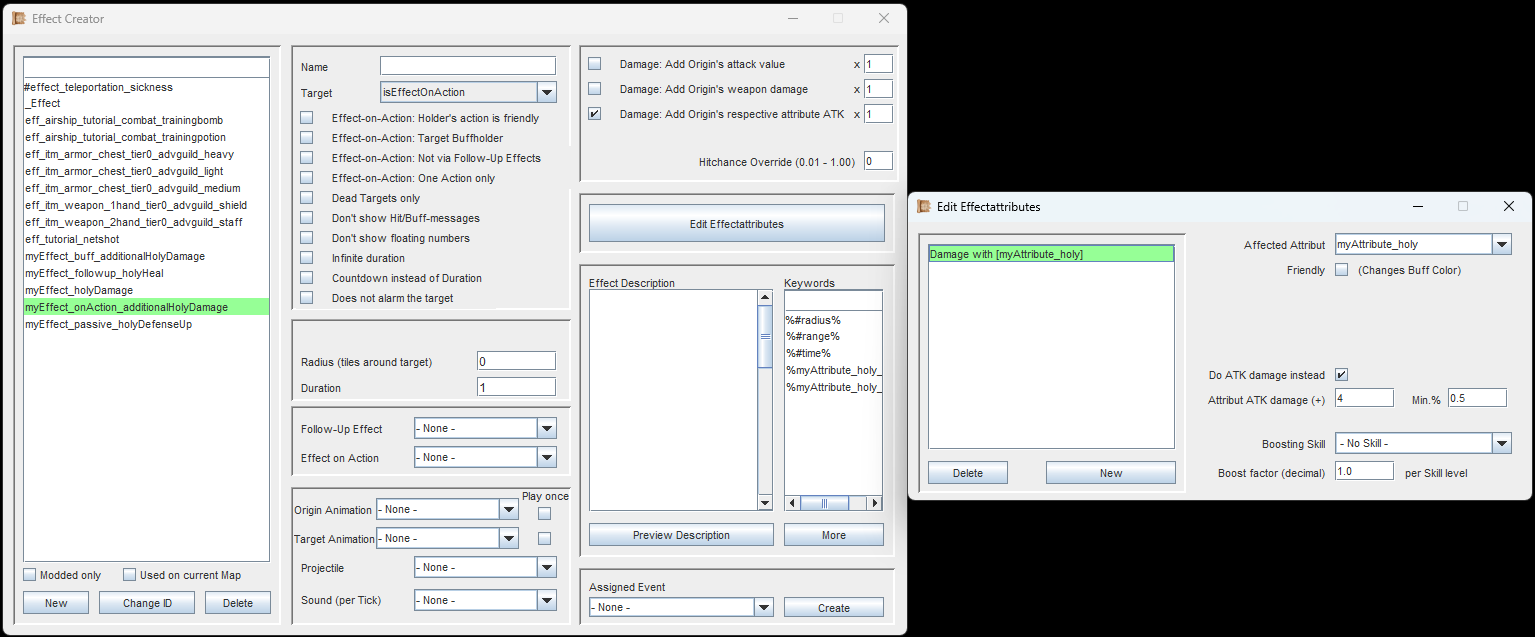
Now we create another Effect, and set the target type to 'Effect-on-Action'. Remember, that this is what will actually be applied to the buff-holders target.
In the example to the left, the Effectattribute for causing 'Holy Damage' has been added. And since the checkbox 'Holder's action is friendly' is not ticked, the 'Effect-on-Action' will be applied when the buff holder does something (attack/ability) to a hostile target.
So with everything set, here is what happens, step by step:
- The player character uses an Ability that contains the 'Holy Buff'-Effect on a friendly target, e.g. another player character.
- The other player character now holds the 'Holy Buff' for a duration of 6 turns.
- The other player character performs an attack on a Bandit (a hostile target).
- The 'Effect-on-Action' is now applied on the Bandit. Since it has a duration of 1, the Bandit receives 2-4 points of Holy Damage instantly.
When configuring an 'Effect-on-Action', there are some additional parameters available.
Holder's Action is friendly
This decides on what type of target the 'Effect-on-Action' can be applied to. If this is friendly, then its only applied when doing an action onto a friendly target.
Target Buffholder
Instead of being applied to the target of the Buffholder, it now applied to the Buffholder themselves. Example: On every friendly action, the Buffholder heals for 5 HP.
Not via Follow-Up-Effects
When this checkbox is ticked, the 'Effect-on-Action' won't be applied via Follow-Up-Effects. Example: The Ability 'Fireball' causes 10 points of fire damage, and it has a Follow-Up-Effect that will cause 2 points of fire damage for 4 turns after. In this case, each time these 2 points of fire damage are caused, it would also apply the 'Effect-on-Action'. But this would be overpowered. So now, with the checkbox ticked, only the initial 10 points of fire damage will apply the 'Effect-on-Action'.
One Action only
If the 'Effect-on-Action' has been applied once, the Buff that contains it is removed from the Buffholder. Basically, the 'Effect-on-Action' only works 1 time for the buff holder.
If you are following the Guide, continue with Abilities.