The Editor
EventBits
Reminder: Hover your mouse over almost any input, field, selectionbox or button in the Editor to receive tooltips and examples.
Table of contents
Understanding EventBits
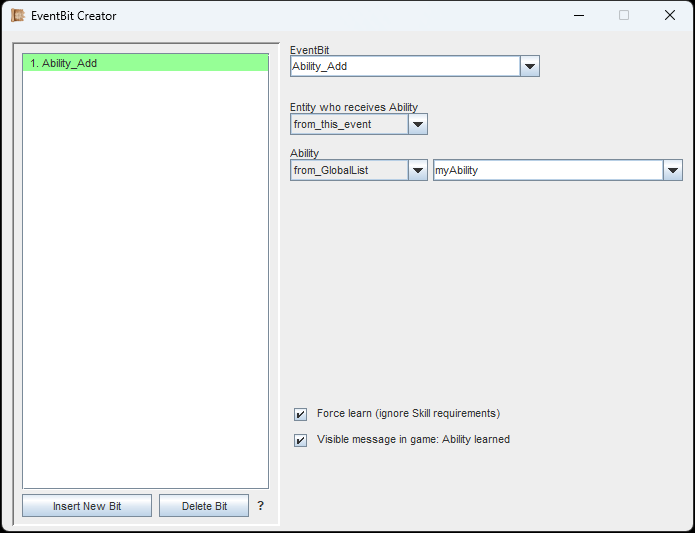
By default, all EventBits appear in a numbered list, and are executed accordingly to this order.
An EventBit is a single 'building block' of a script. All EventBits are pre-defined and simply need to be chained together.
EventBits are always numbered. By default, EventBits are executed in order.
In the image to the left, the 'Ability_Add'-EventBit has been selected. This EventBit adds an Ability to an Entity. After selecting the EventBit, more selections and fields become available, allowing us to configure the EventBit as needed.
Every EventBit has a tooltip that explains it, just hover the Dropdown menu at the top with your mouse. The same goes for the other Dropdown menus.
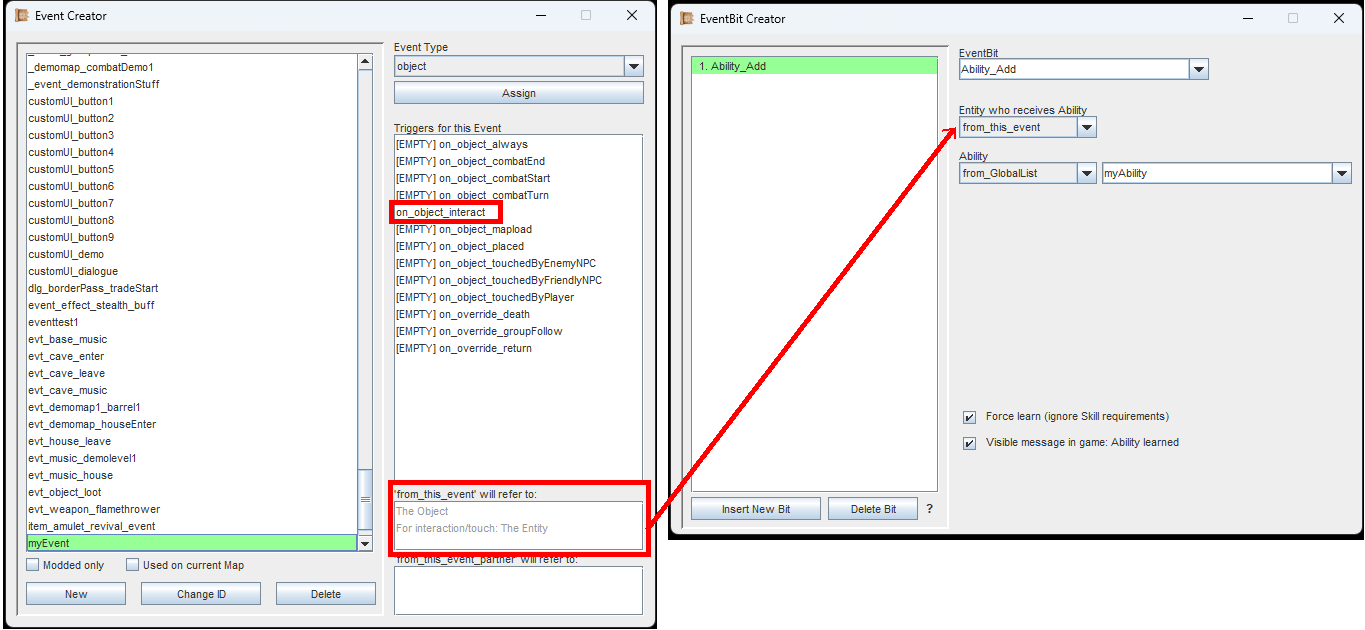
Looking at the Event itself will show you what 'from_this_event' means in the current context.
In our example for the 'Ability_Add'-EventBit, you can see a dropdown menu for selecting the Entity who will receive it. There are many options to pick, but we want to concentrate on 'from_this_event'.
'from_this_event' is dependent on the context. Take a look at the image to the left. The Event is of the type 'object' and our Trigger is 'on_object_interact'. At the bottom right, it is explained that 'from_this_event' will refer to the Entity who started the interaction.
So in this case, the player character who did the interaction is the the target. They will receive the Ability.
As for the Ability itself, 'from_GlobalList' simply gives you the option to pick any Ability thats in the Editor. For demonstration purposes, I also checked both the checkboxes at the bottom.
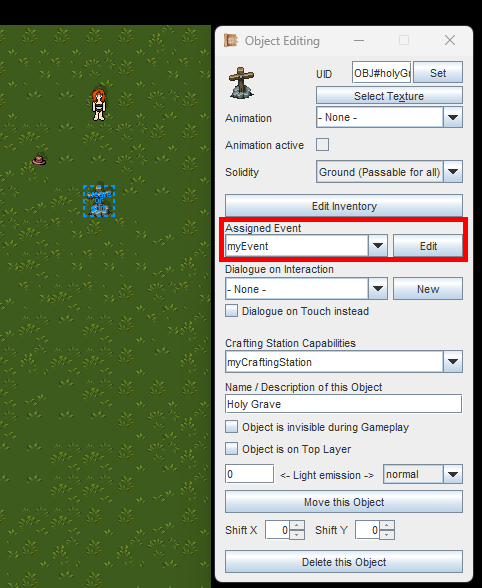
Assigning your Event is easy as pie. If it does not appear in the dropdown, you may have assigned the wrong 'type' to the Event.
It's time to assign our Event now. So far we have only created the Event itself, but we have nothing that actually contains it. Since it is an Event of the type 'object', we can only assign it to: An Object.
In the Map Tools, I have placed a new Object and gave it a texture. Now I click on the dropdown menu as shown in the image to the left. Then I select the Event we created earlier.
That's it, now we just save our Mod and then test it in-game.
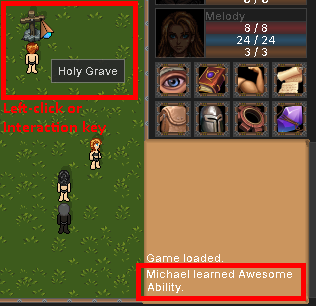
Always test your Events. It's easy if you use the developer tools.
I have moved my player character next to the Object and left-clicked it, or pressed the interaction key.
The Ability is immediately added to my player character. And since I have checked the checkbox for displaying it in the message box, we can also see it in there.
Right now, nothing prevents us from clicking it over and over again, but since my character already knows the Ability, all we would get is a message to inform us that they already know it.
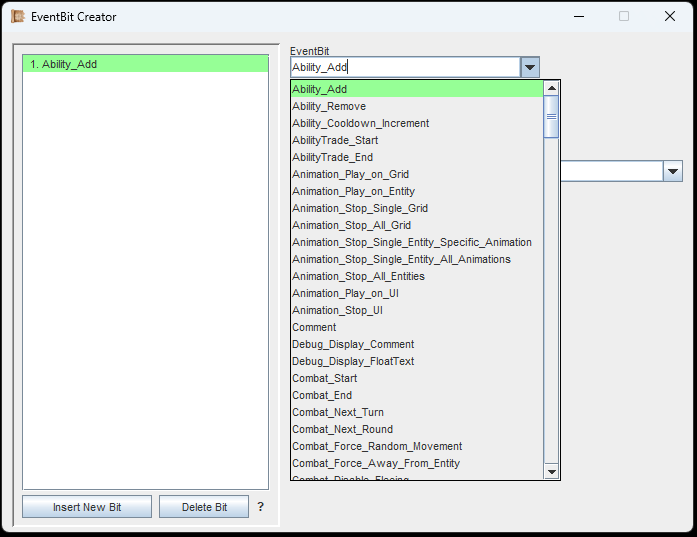
You can type into the dropdown-field to filter all entries.
There are a ton of unique EventBits to select and chain together. Remember that everything is executed in order, by default.
If you want a -short- explanation on the available EventBits, you can find a big list of them at the end of this page.
The complete, long explanation (with examples) is shown when you hover the dropdown in the Editor.
Requirements in EventBits (If-Else)
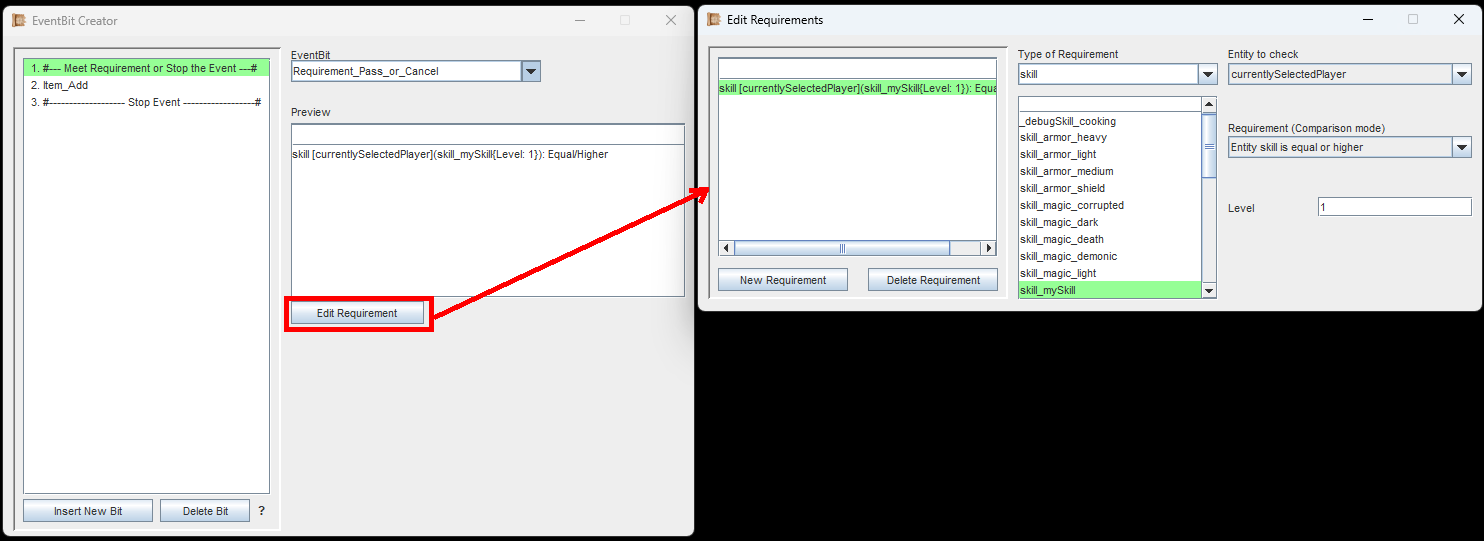
EventBits that check Requirements will show a preview of those requirements above the 'Edit Requirement'-button.
Requirements in EventBits are conditions: "If X then Y". Image this: You want to give the player an item, but only if the selected player character has a certain skill.
For this, you need one of these:
Requirement_Pass_or_Next or Requirement_Pass_or_Cancel.
Both check for one or multiple Requirements. Only if all Requirements are met, the EventBit that comes immediately after will be executed.
If not all the Requirements are met, then the following will happen:
Requirement_Pass_or_Next
If the Requirements are not met, it will check for the next 'Requirement_Pass_or_Next' or 'Requirement_Pass_or_Cancel' and jump there. If no more exist, the Event stops there.
Requirement_Pass_or_Cancel
If the Requirements are not met, the Event stops there.
If left empty, the Requirement is considered to be met.
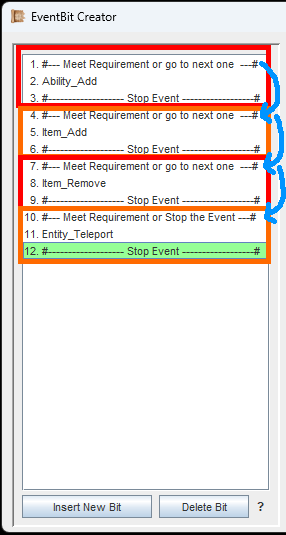
If a Requirement is met, the EventBits below it are executed in order.
In the image to the left we can see a structure with 4 possible outcomes. Programmers would call this an "if... else if... else if... else if...". If we leave the last one empty (no Requirements inside), a programmer would call that last one an "else".
So, we start at the top and the game checks if the requirements in the EventBit are met. If yes, it will execute 'Ability_Add' and 'Stop_Event'.
If the requirements in the EventBit are not met, it will jump to the next check. And so on.
Of course, we could take out all of the 'Stop_Event'-Bits, then everthing can happen if all the requirements are met.
Keyboard-Shortcuts
When editing EventBits, you can use these shortcuts. Most of these follow common PC standards.
- Up- and Down- Arrow-Keys
Navigate the list of EventBits. - Left- and Right- Arrow-Keys
Move a single, selected EventBit up or down. - Hold CTRL + Left-Click
Select multiple EventBits. - Hold Shift + Left-Click
Selects all EventBits between two that you select. - Delete-Key
Delete all selected EventBits. - CTRL + C
Copy all selected EventBits. - CTRL + X
Cut all selected EventBits. - CTRL + V
Paste previously copied/cut EventBits after the current selection.
(Works even across different Events and Triggers.) - Right click (Context menu)
Opens the context menu with more options.
Useful Functions (Templates)
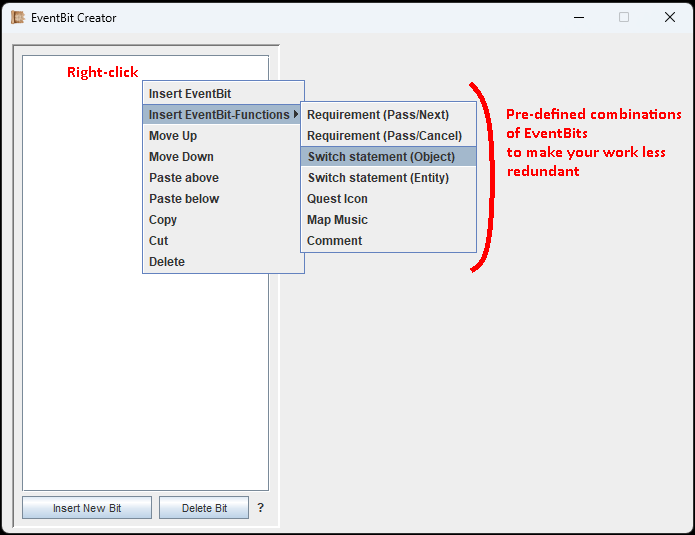
EventBit-Functions are just pre-defined EventBits that quickly add functionality with all default-logic already in.
Sometimes you want to quickly add a Requirement-Structure without having to build it from scratch. To save you the time, a right-click gives you a context menu with the option to insert pre-defined functions.
Again, these are the same EventBits you could manually place, but in one neat package to save you the effort.
Switch-statements / Local Variables
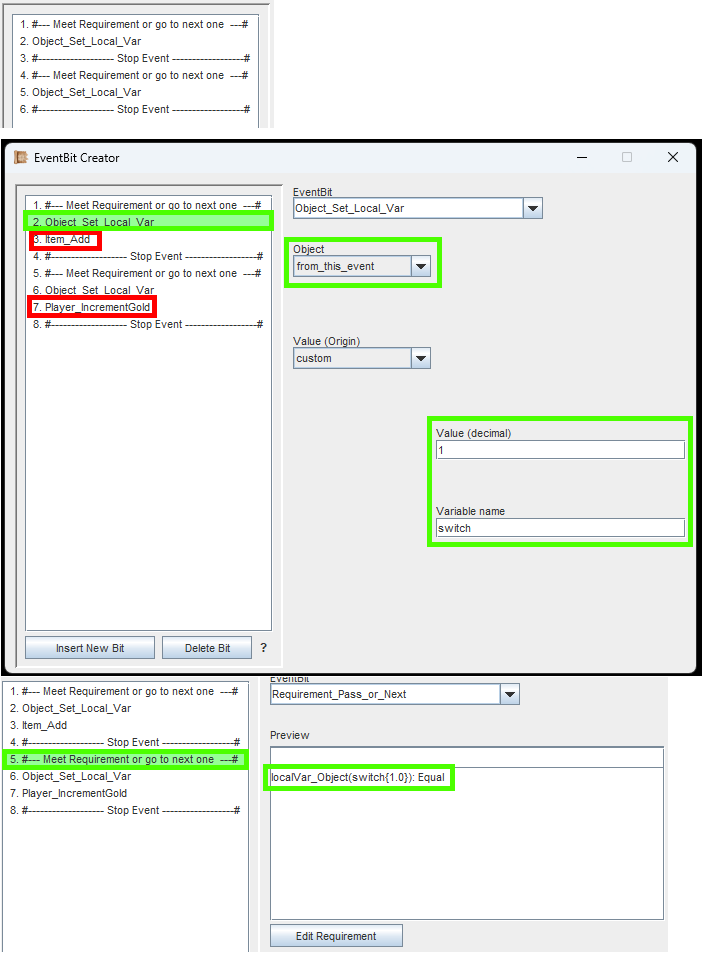
Easy examples for switch statements would be buttons, levers and anything that can be turned on or off. Of course, more states are possible.
A switch statement is a function that switches between different states and does different things depending on them. Imagine a light switch: When you turn it on, it gives light. When you turn it off, the light goes out. So, every time you use the light switch, it goes from A to B to A to B to A to B etc.
Switch statements can be inserted as pre-defined functions (see above). Let's look at the example image to the left.
In the example, we have 2 Requirement Checks. Inside of each, we set a local variable. And the Requirement Checks look for exactly that local variable.
Here is an explanation of what the code in the image does, in simple words:
Requirement A: Is the 'switch'-Variable equal to 0?
> If yes: Set it to 1. And add an Item.
> If no: Go to the next requirement check.
Requirement B: Is the 'switch'-Variable equal to 1?
> If yes: Set to 0. And give the player some gold.
> If no: Go to the next requirement check (there is none though).
If a local variable has not been declared yet, the check for 'is it equal to 0' is always true.
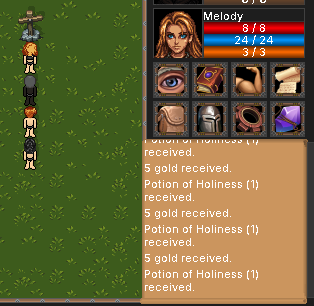
If you don't have visible outputs like this, you can also add the 'Debug_Message'-EventBit to output some text when it is reached.
Here we can see how the above example looks like in-game. In an alternating fashion we receive an item or gold. A>B>A>B>A>B etc.
Example
Hovering the trigger list will show a tooltip that explains each one.
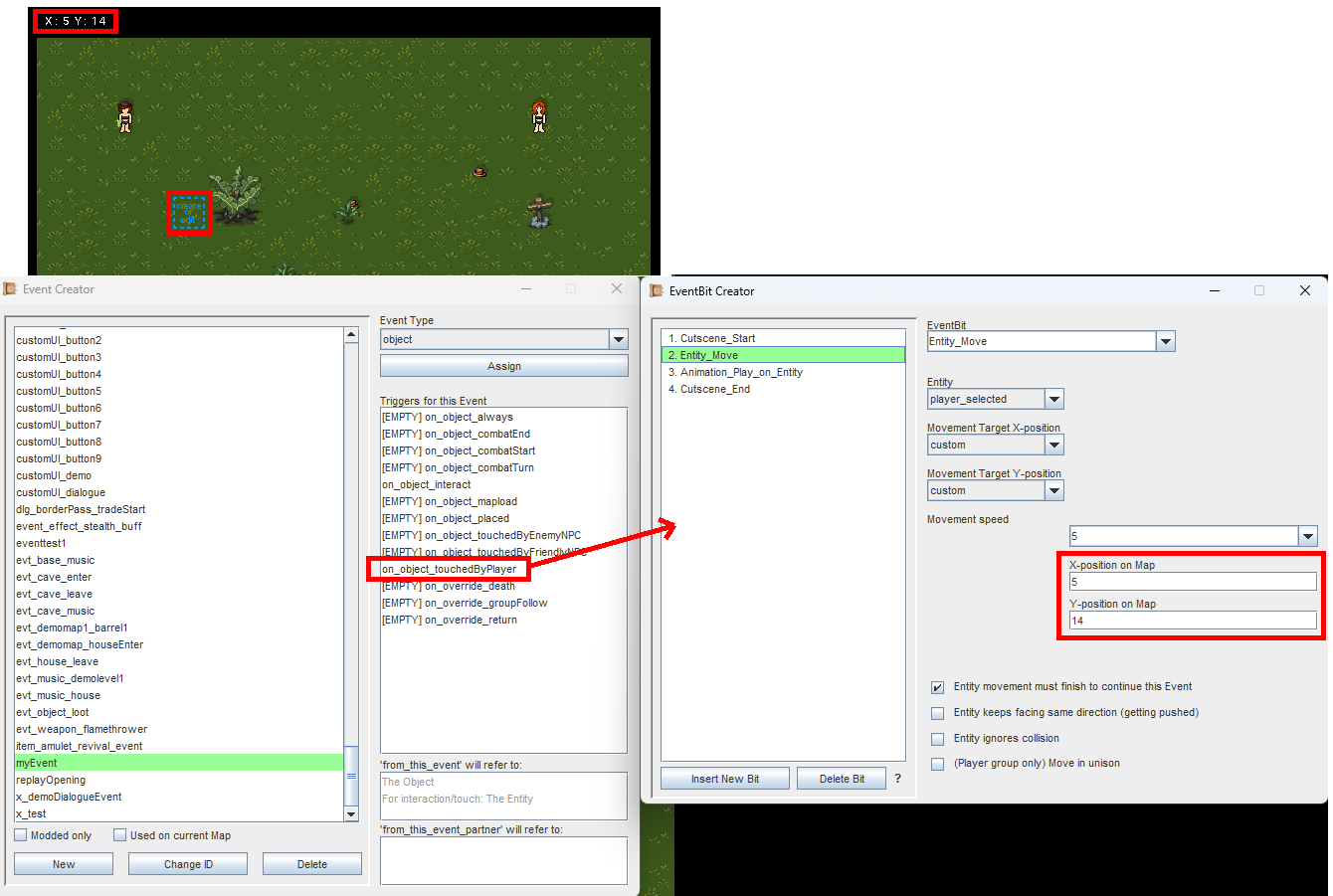
Lets look at one more example. This time, let's use the 'on_object_touchedByPlayer'-Trigger.
I have added 4 EventBits to it.
1. Start a Cutscene
2. Move an Entity (our player character) to coordinates X:5/Y:14
3. Play an Animation on an Entity (our player character)
4. End the Cutscene
The EventBit 'Entity_Move' has a checkbox for pausing further Event execution until the movement is completed.
After the cutscene was started, the Event waits for the player to move to the given coordinates, and only once reached, the Animation will be played and the cutscene will end.
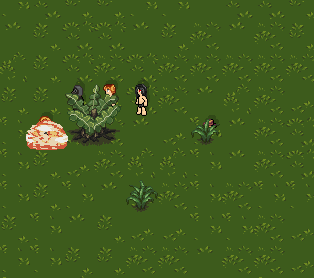
The character reached the coordinates and the Animation is playing.
The test was successful: My currently selected player character moved towards the given coordinates and the Animation (in this case an explosion) was played.
List of all EventBits
This is a list of all EventBits that currently exist in the Editor. When hovering them in the Editor, you get a detailed explanation of what they do and sometimes also examples on how they could be used. On this page, I will only give a very short explanation of each one though.
Ability_Add
Adds an Ability to an Entity (e.g. the player).
Ability_Remove
Removes an Ability of an Entity (e.g. the player).
Ability_Cooldown_Increment
Increases or decreases the active cooldown of an Ability of an Entity.
AbilityTrade_Start
Opens a trade window in which the player characters can buy the Abilities that the teacher Entity knows.
AbilityTrade_End
Closes the trade window for buying abilities.
Animation_Play_on_Grid
Plays an Animation on a tile of the map (X-Y-coordinates).
Animation_Play_on_Entity
Plays an Animation on an Entity.
Animation_Stop_Single_Grid
Stops playing all Animations on a single tile of the map (X-Y-coordinates).
Animation_Stop_All_Grid
Stops playing all Animations on all maptiles on the current Map.
Animation_Stop_Single_Entity_Specific_Animation
Stops the single, specified Animation on the Entity.
Animation_Stop_Single_Entity_All_Animations
Stops all Animations on the Entity.
Animation_Stop_All_Entities
Stops all Animations on all Entities on the Map.
Animation_Play_on_UI
Plays an Animation on the game UI.
Animation_Stop_UI
Stops all Animations on the game UI.
Comment
A comment that is only visible inside of the Editor. Helps structuring EventBits, but does nothing.
Debug_Display_Comment
Displays a message in the game messagebox, if the game was started in '-dev' mode.
Debug_Display_FloatText
Displays a floating test at the given X-Y-coordinates, if the game was started in '-dev' mode.
Combat_Start
Starts combat. Needs hostile NPCs in combat mode or it will end immediately.
Combat_End
Ends combat immediately
Combat_Next_Turn
Immediately starts the turn of the next Entity.
Combat_Next_Round
Skips all remaining turns of all Entities and starts a new round.
Combat_Force_Random_Movement
Forces an Entity to move 'randomly' (within parameters) during Combat, even if its not their turn.
Combat_Force_Away_From_Entity
Forces an Entity away from another Entity (push) during Combat, even if its not their turn.
Combat_Disable_Fleeing
The player won't be able to flee from Combat anymore.
Combat_Enable_Fleeing
The player can flee from Combat again, if it was disabled.
Combat_Interrupt_Channeling
Interrupts the Channeling-Effect of an Entity (if they are channeling).
Combat_Increment_Threat
Increases/Decreases the threat level of a player, making them more/less likely to be attacked in Combat.
Combat_Set_Defending
Puts an Entity in Defense-Mode. Even if they already had their action.
Combat_Set_Disallowed_Actions
Prohibits an Entity from attacking, using items, using abilities or defending themselves.
Craftingrecipe_Add
Adds a crafting recipe to the players known recipes.
Craftingrecipe_Remove
Removes a crafting recipe from the players known recipes.
Cursor_Set
Changes the mouse cursor to an animation or an image (image == single-frame-animation).
Cursor_Reset
Changes the mouse cursor back to default.
Cutscene_Start
Starts a cutscene: Pauses the gameplay and disables player input.
Cutscene_End
Ends a cutscene: Unpauses the gameplay and re-enables player input.
CustomUImode_Start
Opens a map (that you have designed so it looks like an UI, menu or minigame) and allows the player to interact with it via the mouse. Easy to create, easy to use and always immersive. Can be ended via the 'Back'-key on the keyboard (default 'Tab').
CustomUImode_End
If CustomUImode was active (see previous EventBit), this will end it.
Clear_Messages
Empties in-game message box.
Collision_Disable
Disables collision with Entities, Maptiles and Objects. Everyone can walk through everything.
Collision_Enable
Re-enables collision if it was off before.
Dialogue_Start
Starts a Dialogue. Can also state multiple Dialogues and pick one at random.
Display_Message
Displays a message in the in-game message box.
Display_FloatText
Displays a floating text at the given map X-Y-coordinates.
Display_FloatText_on_Entity
Displays a floating text at the position of an Entity.
Display_FloatText_Visible_ON
Makes floating text visible if it was disabled.
Display_FloatText_Visible_OFF
Disables floating text visibility.
Effect_Give
Places an Effect on an Entity.
Effect_Give_Radius
Places an Effect on an Entity and all other Entities (from the same faction) around it.
Effect_On_Position
Places an Effect on a tile of ground or wall. Can affect an Entity (or multiple if the Effect has a radius), when it is standing on that tile.
Effect_Remove
Removes a single, specified Effect from an Entity.
Effect_Remove_Random
Removes a random, friendly or non-friendly Effect from an Entity.
Effect_Remove_All
Removes all Effects from an Entity.
Entity_Place
Dynamically places an Entity at the given X-Y-coordinates.
Entity_Remove
Removes an Entity at the given X-Y-coordinates.
Entity_Heal_or_Damage
Directly, without subtractions, increases or decreases the HP of an Entity.
Entity_Kill
Kills an Entity. A player is put in 'defeated'-mode during combat and reduced to 1 HP outside of combat.
Entity_Teleport
Teleports an Entity to the given X-Y-coordinates. Can teleport the whole player group at once, if stated.
Entity_Move
Makes an Entity move to the given X-Y-coordinates. Automatically uses pathfinding.
Entity_Move_SemiRandom
Makes an Entity move 'randomly' (within certain parameters). Used for e.g. patrolling.
Entity_Assign_Event
Assigns an Event to an Entity. Replaces an existing Event.
Entity_Remove_Event
Removes the Event from an Entity.
Entity_Assign_Dialogue
Assigns a Dialogue to an Entity. Replaces an existing Dialogue.
Entity_Remove_Dialogue
Removes the Dialogue from an Entity.
Entity_Set_Combatmode_ON
Puts an Entity in Combat-Mode. If 'Combat_Start' is executed after, the Entity will be part of Combat.
Entity_Set_Combatmode_OFF
Removes an Entity from Combat-Mode.
Entity_Set_FakeDeath_ON
Puts an Entity in a Fake-Death state. Used for cutscenes.
Entity_Set_FakeDeath_OFF
Ends the Fake-Death state of an Entity.
Entity_Set_ScriptEffectImmunity_ON
Sets the ScriptEffectImmunity-flag to ON. Some Effects may check for this.
Entity_Set_ScriptEffectImmunity_OFF
Sets the ScriptEffectImmunity-flag to OFF. Some Effects may check for this.
Entity_Set_UnknownStatusbars_ON
When hovering the hostile Entity, all their status bars appear with question marks instead of numbers.
Entity_Set_UnknownStatusbars_OFF
The status bars of the hostile Entity are readable again.
Entity_Set_Threshold
Sets a threshold for HP, MP or ENP for an Entity. They cannot drop below that value. Good for scripted fights.
Entity_Set_Local_Var
Sets a local variable for the Entity. Good for simple switch-statements.
Entity_Fake_Projectile
Shoots a dummy projectile from the Entity to X-Y-coordinates on the map. Does no damage and has no Effect.
Entity_Fake_Weaponhit
Plays the weapon hit animation of the Entities' equipped weapon to X-Y-coordinates on the map. Does no damage and will cause no Effects.
Entity_Weaponhit
Executes a functional weapon strike with the Entities' equipped weapon onto another Entity.
Entity_Rotate
Rotates the Entity North, East, South or West.
Entity_RotateTo
Rotates the Entity towards given X-Y-coordinates.
Entity_RotateTo_Entity
Rotates the Entity towards another given Entity.
Entity_SetFaction
Marks an Entity (NPC only) as friendly or hostile towards the player.
Entity_SetStealth
Activates/Deactivates Stealth on an Entity, making them difficult to be detected outside of Combat or targeted during Combat. Depends on the Entities' 'Stealth'-attribute and the opponents 'Stealth Detection'-attribute.
Entity_Morph
Turns an Entity into the copy of a donor Entity. Includes visuals, Items, Skills, Abilities etc.
Entity_Transform
Temporarily changes the visual appearance of an Entity to any body texture. This can be used to e.g. make the player look like a tree. Eyes, Hair and Equipment are hidden while this is active. Purely visual, best used as part of an Effect. In that case, make sure to use 'Entity_Transform_End' when the Effect ends or is removed. A Requirement can be used to check if an Entity is currently transformed.
Entity_Transform_End
If the Entity has been transformed via 'Entity_Transform', this will revert it.
Event_Stop
Stops the currently executing Event.
Event_Call
Immediately executes an Event (without event type).
Camera_Mode_Free_WASD_Movement
The camera can now freely be moved across the whole map via the WASD-keys.
Camera_Mode_Follow_Player
The camera follows the selected player character again (default camera behavior).
Camera_Move
Moves the camera to the specified X-Y-coordinates.
Camera_Set_Position
Teleports the camera to the specified X-Y-coordinates.
GameVariable_SetValue
Dynamically sets the value of a Gamevariable.
GameVariable_IncrementValue
Dynamically increases/decreases the value of a Gamevariable.
GameVariable_RandomValue
Dynamically sets a random value to a Gamevariable (within parameters).
GameVariable_CopyString
Dynamically copies a String from one Gamevariable to another.
GameVariable_SetString
Dynamically sets a String of a Gamevariable.
GameVariable_Set_Entity
Dynamically writes the Entities' unique ID (UID) into a Gamevariable String. This can then be used as a source in other EventBits.
GameVariable_Set_Entityname
Dynamically writes the Entities' in-game name into a Gamevariable String. Using the String-keyword from this Gamevariable, the Entity name can be included almost anywhere.
GameVariable_Set_Entityclass
Dynamically writes the Entities' in-game class into a Gamevariable String. Using the String-keyword from this Gamevariable, the Entity name can be included almost anywhere.
GameVariable_Set_Player_by_Personality
Dynamically writes the unique ID (UID) of a player character with the specified personality type into a Gamevariable String.
GameVariable_Set_Player_by_Skill
Dynamically writes the unique ID (UID) of a player character with the specified known Skill into a Gamevariable String.
GameVariable_Set_Player_by_Ability
Dynamically writes the unique ID (UID) of a player character with the specified known Abilityk into a Gamevariable String.
GameVariable_Set_Equipped_Itemname
Dynamically writes the item name of an Entities' equipped item into a Gamevariable String.
GameVariable_Set_Itemname
Dynamically writes the Item name of the specified Item into a Gamevariable String.
GameVariable_Set_Abilityname
Dynamically writes the Ability name of the specified Ability into a Gamevariable String.
GameVariable_Set_Skillname
Dynamically writes the Skill name of the specified Skill into a Gamevariable String.
GameVariable_Set_Position_Entity
Dynamically writes the X-Y-coordinates of an Entity into 2 Gamevariable Values.
GameVariable_Set_Position_Object
Dynamically writes the X-Y-coordinates of an Object into 2 Gamevariable Values.
GameVariable_Set_Position_Semirandom
Takes X-Y-coordinates of 2 Gamevariable Values and attempts to find a free maptile in a specified radius around them. Then saves the found maptiles own coordinates back into the same Gamevariables. If no free tile was found, the Gamevariables are set to -1 each, which can be checked against.
GameVariable_Set_Entity_Semirandom
Takes X-Y-coordinates of 2 Gamevariable Values and attempts to find an Entity in a specified radius around them. Then saves the found Entitie's UID (unique ID) back into the same Gamevariables as a String. If no eligible Entity was found, the Gamevariable's Strings are emptied each, which can be checked against.
GameVariable_Set_MapID
Dynamically writes the mapID of the specified Map into a Gamevariable String.
GameVariable_Set_Time
Dynamically writes the current in-game time (fully formatted) into a Gamevariable String.
Game_Pause
Pauses the game. Stops all Entities from moving, holds Combat and Dialogues, prevents detection, prevents interactions and stops Spawning of Entities. This is the same as if you open a menu. In most cases, you should use 'Cutscene_Start' instead of this.
Game_Unpause
Unpauses the game (see above).
GoTo
Jumps directly to an EventBit inside of your Event, by using the number in the list.
GUI_enable
Re-enables the graphical user interface if it was disabled before.
GUI_disable
Disables the graphical user interface. The player can see slightly more of the map.
Restricted_PlayerView_enable
Restricts the player's view, they cannot look through walls. Useful for interior maps.
Restricted_PlayerView_disable
Disables the restrictions on the player's view, they can look through walls. Useful for exterior maps.
Restricted_Light_enable
Light cannot go through walls. Useful for interior maps.
Restricted_Light_disable
Light can go through walls. Useful for exterior maps.
Input_disable
Disables player inputs (mouse and keyboard) without pausing the game.
Input_enable
Re-enables player inputs if they were disabled via 'Input_disable' before. Does not un-pause the game, which could still block the inputs.
Item_Add
Adds the specified Item amount to an Entity.
Item_Remove
Removes the specified Item amount from an Entity.
Item_Equip
Makes an Entity equip the specified Item. Item must be in their inventory first.
Item_Unequip
Makes an Entity unequip the specified Item.
Item_Unequip_slot
Makes an Entity unequip the specified equipment slot.
Item_Consume
Makes an Entity consume a consumable item (food, drink, potions).
Item_Place
Places the specified Item amount onto the X-Y-coordinates on the map.
Looting_Start
Opens the Looting Screen to loot the specified Entity.
Looting_End
Closes the Looting Screen.
Map_Change
Changes to the specified Map, teleports the player to the specified X-Y-coordinates.
Map_Change_Gamevariable
Changes the Map, sources the mapID from a given Gamevariables. Teleports the player to the specified X-Y-coordinates
Map_Reset
Resets the Map as if the player is entering it for the first time. Items, Entities, Objects are all back.
Map_Lighting_Set
Sets a static lighting value for the brightness of the Map. This value will not change with time.
Map_Lighting_Auto
Sets brightness of the map to dynamically change with the in-game time.
Map_Lighting_Override
Without affecting the static or dynamic lighting mode (see above) of the Map, this will reduce or increase the brightness of the Map by a given percentage. Good for cutscenes and temporary effects.
Music_Play
Plays the specified piece of Music. Can play multiple at the same time.
Music_Volume
Sets the Music Volume (relative to what the player has set in their settings).
Music_Stop
Stops all playing Music pieces.
Music_Stop_Specific
Stops only the specified Music piece.
Object_Place
Dynamically places a new Object onto the Map, at the specified X-Y-coordinates. Can be configured like any other Object.
Object_Remove
Dynamically removes an Object from the Map.
Object_Play_Animation
Plays an Animation on the Object (overrides the base texture).
Object_Stop_Animation
Stops an ongoing Animation on the Object (shows the base texture, if any).
Object_Assign_Texture
Assigns a new Texture to the Object.
Object_Assign_Event
Assigns a new Event to the Object.
Object_Remove_Event
Removes an assigned Event from the Object.
Object_Assign_Dialogue
Assigns new Dialogue to the Object.
Object_Remove_Dialogue
Removes an assigned Dialogue from the Object.
Object_Set_Visible_OFF
Makes the Object invisible in-game.
Object_Set_Visible_ON
Makes the Object visible, if it wasn't.
Object_Loot_Inventory
Opens the looting screen for an Object. Can loot whatever it has in it's inventory.
Object_Change_Solidity
Changes the Solidity of an Object, e.g. Ground, Wall, Top-Layer passable etc.
Object_Set_LightEmission
Changes the light emission value of an Object.
Object_Set_Local_Var
Sets a local variable for the Object. Good for simple switch-statements.
Player_AddEXP
Adds experience points (for leveling up) to a player character.
Player_IncrementGold
Increases/Decreases the player's gold.
Player_GroupFollow_enable
Makes the player group follow the currently selected player character (default behavior).
Player_GroupFollow_disable
The player group no longer follows the currently selected player character. They remain where they are.
Player_GroupFollow_Button_Enable_Disable
Enables or Disables the 'Group-Following-Mode'-button in the UI, so the player can/can't use it.
Player_GroupFollow_ManualSwitch
Requests a change in the Group-Following-Behavior. Toggles it on or off. Basically 'Player_GroupFollow_enable' and 'Player_GroupFollow_disable' in one single EventBit, but the difference is, that this version here will respect a disabled 'Group-Following-Mode'-button in the UI.
Player_Set_Disabled
Removes a player character from the group entirely (does not delete them).
Player_Set_Enabled
Re-adds a player character to the group again, if they were disabled before.
Player_Visible_OFF
Makes a player character invisible. They function the same as before otherwise.
Player_Visible_ON
Makes a player character visible again, in case they were not.
Player_Faction_EntityID_Add
All hostile Entities with the given EntityID will now be neutral towards the player. They will not attack the player unless the player attacks first. They will not react if the player attacks another Entity with a different EntityID.
Player_Faction_EntityID_Remove
Reverts 'Player_Faction_EntityID_Add'. The given hostile EntityID will behave as usual again, attacking the player on sight.
Player_Unlimited_Clickrange_ON
Makes all Entities and Objects clickable from everywhere, no matter the range.
Player_Unlimited_Clickrange_OFF
Restores the default clicking range (must stand next to Entity or Object to click on it for interaction).
Player_Movement_Disabled
Prevents the player from moving. Everything else still works normally.
Player_Movement_Enabled
Allows the player to move again, if it was disabled.
Player_LineUp_Characters
Makes all player characters physically line up after the currently selected one.
Player_Congregate_Characters
Makes all player characters physically walk onto the same tile as the currently selected one.
Player_Set_Selected_Character
Selects the specified player character without the player's involvement.
Player_Characterchange_Disabled
Prevents the player from changing the characters.
Player_Characterchange_Enabled
Allows the changing of characters again, if it was disabled.
Player_Semirandom_Seed
Creates a new random order in which the next randomly selected player characters will be selected, e.g. in a Dialogue. Usually the game will take care of the randomization automatically, but the new Seed from this EventBit will also include the last player character who said a line of Dialogue. This means that the very same player character can speak again immediately (which the game usually tries to avoid).
Player_Semirandom_Seed_with_exception
Creates a new random order in which the next semi-randomly selected player characters will be selected, e.g. in a Dialogue, BUT the specified player character is exempt of this. This is needed if you want to exclude a specific player character for the next semi-random pickings.
Player_Teleport_To_Player
Instantly teleports all Player characters to the position of the currently selected Player character and matches their rotation. Use this to get the group back together for cutscenes, if it requires them to be present.
Player_Steal
Will take a random, stealable item from the target Entity and add it to the player's inventory. Items that stack are taken all at once (e.g. coins). Only items in the Entities inventory, that have been marked as 'Stealable' are eligible. Using this EventBit, you can create various 'Stealing-Abilities'.
Player_ResetAttributes
Resets all spent attribute points of a player character to 0, so they can spend them again.
Quest_Add
Adds a Quest to the player's quest log.
Quest_Finish
Removes a Quest from the player's quest log and rewards EXP if the quest has them.
Quest_Reset
Resets a Quest, so it can be added to the player's quest log again via 'Quest_Add'.
Requirement_Pass_or_Cancel
Technical EventBit. You define various Requirements, and if they are all met, the EventBits directly after this one will be executed normally. If the Requirements are not met, the Event stops there.
Requirement_Pass_or_Next
Technical EventBit. You define various Requirements, and if they are all met, the EventBits directly after this one will be executed normally. If the Requirements are not met, it will check for the next 'Requirement_Pass_or_Next' or 'Requirement_Pass_or_Cancel' and jump there. If no more exist, the Event stops there.
Return_BaseOrLocation
Teleports the player group to their base. If they are already at the base, this will teleport them back to the previous location.
Return_Disable
Prevents the player from teleporting to their base. The UI-button will be greyed out.
Return_Enable
Re-enables the player teleporting to their base, if it was disabled before.
Screen_Show
Switches to a different player menu, like the Quest- or Inventory-Screen, or goes back to the normal Game-Screen. This cannot open trading windows; Use 'Trade_Start' or 'AbilityTrade_Start' or 'SkillTrade_Start' for that.
Screen_FadeOut
Fades the game screen to black over X seconds.
Screen_FadeIn
Fades the game screen in over X seconds (if it was faded out).
Screen_Shake
Shakes the game screen with an intensity of X over Y seconds.
Spawn_Entities
Spawns Entities dynamically within a defined radius and interval when the player is not looking.
Sound_Play
Plays the specified Sound.
Skill_Add
Adds a Skill to an Entity, e.g. to a player character.
Skill_IncrementLevel
Increases/Decreases the Skill level of an Entity, e.g. a player character.
Skill_Remove
Removes a Skill from an Entity, e.g. from a player character.
Skill_AddEXP
Adds Skill Experience to an Entity, e.g. to a player character.
SkillTrade_Start
Begins a Trade where the player can pay to learn Skills. All Skills that the teacher-entity knows are available for purchase.
SkillTrade_End
Ends a Skill Trade if one was ongoing.
Time_Set
Sets the current in-game time in hours and minutes.
Time_Increment
Increments/Decrements the current in-game time by X hours and Y minutes.
Trade_Start
Starts an item trade. The player can buy and sell items.
Trade_End
Ends an item trade, if one is ongoing.
TextInput_Prompt
Displays an Input-Prompt to the player, along with a defined message. The player can then type in something and it will be saved in a Gamevariable. During input, the game is paused.
Wait
Technical EventBit. Waits for X real-time seconds, then the next EventBit is executed. Can be used to increase intervals.
Weather_Add
Adds a Weather effect to the in-game screen. Basically just a looping Animation that is tiled over and over to fill the whole screen. Multiple can exist at the same time.
Weather_StopAll
Stops all ongoing Weather effects.
If you are following the Guide, continue with Strings & Translations.