The Editor
Mod Merging
Reminder: Hover your mouse over almost any input, field, selectionbox or button in the Editor to receive tooltips and examples.
Table of contents
What is Mod Merging?
Mod Merging is the process of taking a Mod and transferring all it's content into another Mod. This way, you can combine the contents of two, or even more Mods into a single one. This has multiple use cases:
- Multiple people coop-modding, then merging their contents together
- Making Mod compilations
- Safely experimenting with a Mod of your Mod, then merging them together if you are satisfied
The Merging Process
When Merging two Mods, it can happen that both Mods have contents with the exact same IDs. For example: Both have an item with the ID "myHat". This is not the end of the world. Below, you can see 2 Merging Examples, where you learn more.
Example with no Discrepancies

Here we are looking at the second Mod. The one which contents we want to have into our main Mod.
In our example, we have two Mods. One Mod is the one we mainly work on, and the other one just contains one single Item, "Staff of Fire".
In the image to the left, we are looking at this one single Item, inside of its own tiny Mod.
Our goal: Merging this tiny Mod into our main Mod, so the main Mod has the Item.
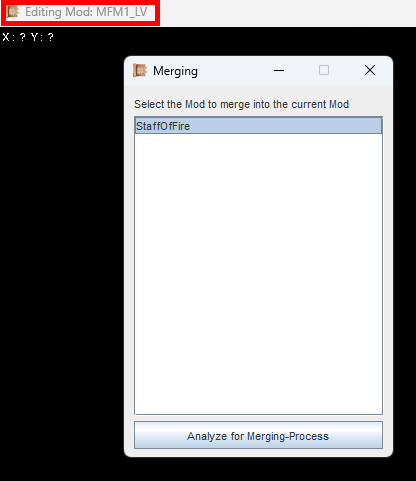
Here our Main Mod is loaded. In the Merging window we then select the second Mod.
We always start with the Mod that receives the new content.
Load it normally when you start up the Editor.
You don't need Mod Tracking selected.
Then, in the Editor menu we select 'Mod Merger'.
In the image to the left, you can see that we are editing a Mod called "MFM1_LV". This is our main mod. In the Mod Merger window we now select whatever we want to merge into it. In this case, our Mod with the "Staff of Fire"-item in it.
Press the Analyze-Button at the bottom of the window to continue.
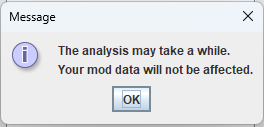
Click OK to continue, then wait a bit.
Depending on the size of both Mods, the Analysis can take between a few seconds and a few minutes. Usually its done super fast.
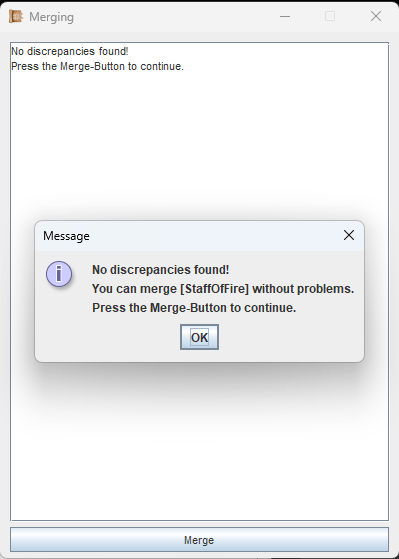
This is what you see if no discrepancies were found. No conflicting IDs.
A new window will appear with the results of the analysis.
In this first example, no discrepancies were detected. So, no identical (and therefore conflicting) IDs where found.
We can continue by clicking the Merge-Button.
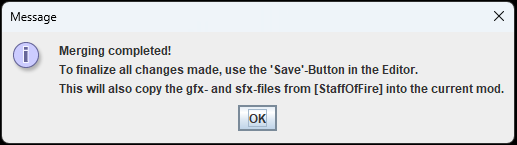
Your Mod files are not affected until you save your Mod and finalize all the merged changes.
Now, all contents of the second Mod have been copied into the one you have currently loaded. At this point, all you have to do is Saving your Mod, which will finalize all changes and copy the gfx- and sfx- files over to your loaded Mod.
If you exit the Editor without saving your Mod, everything will remain as before.
Example with Discrepancies
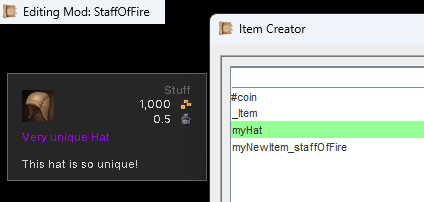
Here we are looking at the second Mod. The one which contents we want to have into our main Mod.
Now let's look at another example. This time, both Mods will now also contain an item with the exact same ID. In the image to the left, this item has the ID 'myHat'.
As before:
We always start with the Mod that receives the new content.
Load it normally when you start up the Editor.
You don't need Mod Tracking selected.
Then, in the Editor menu we select 'Mod Merger'.
Finally, we select the mod to merge in and start the Analysis by clicking on the button in the merger window.
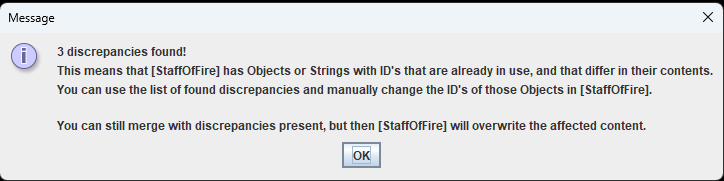
This is what you see, if the currently loaded Mod and the Mod which contents you want to merge have conflicting (identical) IDs.
Since both mods contain an item with the same ID, we see a warning. This is not the end of the world, lets click OK and look at the analysis results.
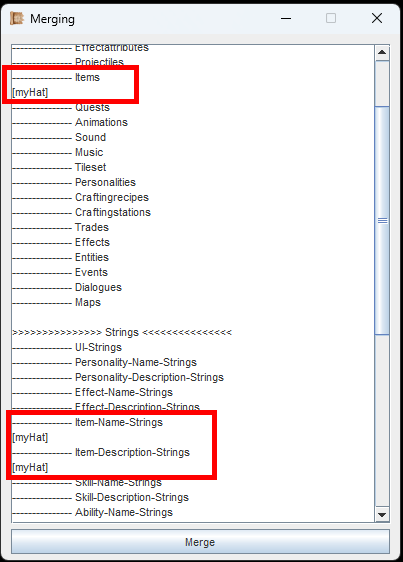
An Overview of all the identical IDs. Strings are usually automatically resolved, when you change the ID of whatever contained them.
Here we see, that there are various identical (and therefore conflicting) contents. The item itself, the name String and the item description String.
You can do two things now:
A) Inside of either Mod, simply change the ID of one of the items. This also takes care of the attached Strings. Then do the Merging Analysis again.
B) Accept the discrepancy and merge right away. This will cause the second Mod's item to overwrite the item of the currently loaded Mod.
Once Merging is complete, all you need to do is Saving your Mod, which will finalize all changes and copy the gfx- and sfx- files over to your loaded Mod.
If you are following the Guide, continue with Mods of Mods.