The Editor
Mod Cleaning
Reminder: Hover your mouse over almost any input, field, selectionbox or button in the Editor to receive tooltips and examples.
Table of contents
Mod Cleanup
Sometimes you make changes to an item, ability, entity or anything else by accident. Then you might undo this change. It now looks like everything is back to normal, but you unwillingly have created a modded version of this thing, that has the exact same content as the vanilla version. And this takes up unnecessary space.
The solution is simple: A Cleanup Helper that detects empty duplicates and removes them for you.
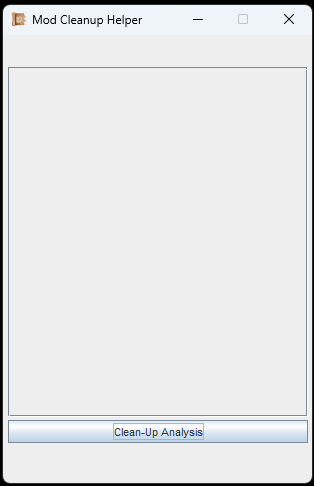
Press the button, that's all you can do lol.
Press the button to do a Clean-Up Analysis.
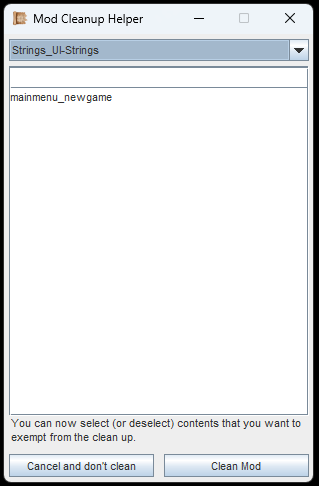
Go through the categories in the dropdown to see what else came up.
After the analysis is finished (might take a little, depending on your Mod size), you will see a dropdown and a list.
The dropdown shows you various categories that you can check for duplicates. Select a category, like in our example image: "Strings_UI-Strings".
In the example we see an entry in the list: The String "mainmenu_newgame" has been changed, but it contains the exact same text as the original one. This probably happened in the String Editor.
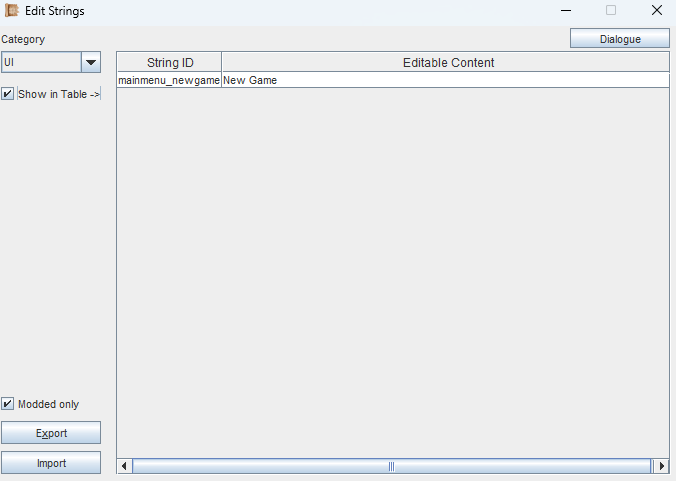
Confirming: The String appears under 'Modded only' even though it contains vanilla text. -> Accidental duplication.
Doing a quick check in the String Editor, looking for 'Modded only' in the UI-category, we can see that, indeed, the String appears to be modded.
Since the text "New game" is the same as the vanilla text though, this is a useless, empty duplicate.
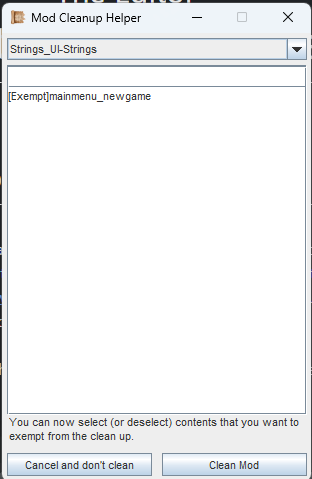
You can exempt list entries by clicking on them. Usually not needed though.
We can click on the list entry if, for some reason, we want to exempt this String from the Cleanup. In most cases though, we might just leave it as-is.
Then we hit the "Clean Mod"-button and wait a little.
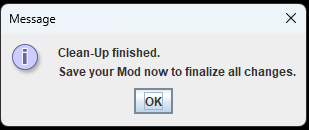
Success! Now go and save your Mod.
Once you see this message box, everything should be done. The only thing left to do now is saving your Mod. This will make the removals permanent. (They were just duplicates though, so don't be too sad about it).
If you are following the Guide, continue with Mod Merging.