The Editor
Game Variables
Reminder: Hover your mouse over almost any input, field, selectionbox or button in the Editor to receive tooltips and examples.
Table of contents
Game Variables
Game Variables, or just Variables, can contain text and/or values. They can be accessed by Events and are available from everywhere. Game Variables can even be used as keywords, and implemented in all sorts of texts. A Game Variable might track the progress of a Quest, how many monsters you have defeated, the custom name that you gave to an NPC, the X- and Y- coordinates of your player character at this moment, and much much more. Don't worry, these are super easy to use.
Game Variable Creator
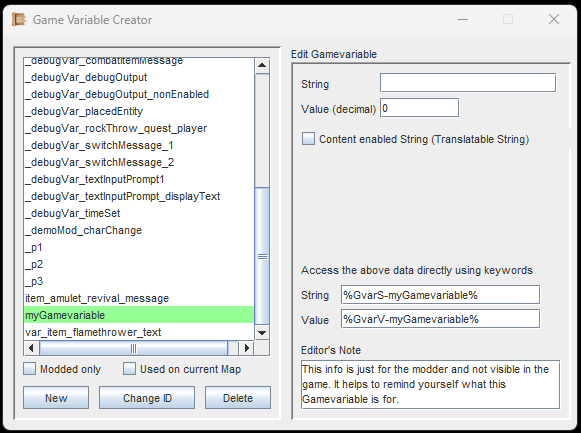
Don't be afraid of Game Variables. They are very useful and have so many uses!
First you need to create a new Game Variable and assign it a unique ID.
Then, you can write a String and/or a decimal Value into the input fields, if you want. You can also leave these empty, and fill them dynamically during Gameplay. These values can be written and read as often as you need to.
If you click the checkbox 'Content enabled String', the String you put in will appear inside the String Editor and can be easily translated then. These types of Strings are needed for dynamically placed Objects (via an Event), and they can also act as names for Abilities, Items, Skills etc. (More on that further below).
At the bottom-right of the window you can see the Editor's Note. This is purely for the modder (you) to remind yourself what this Game Variable is used for.
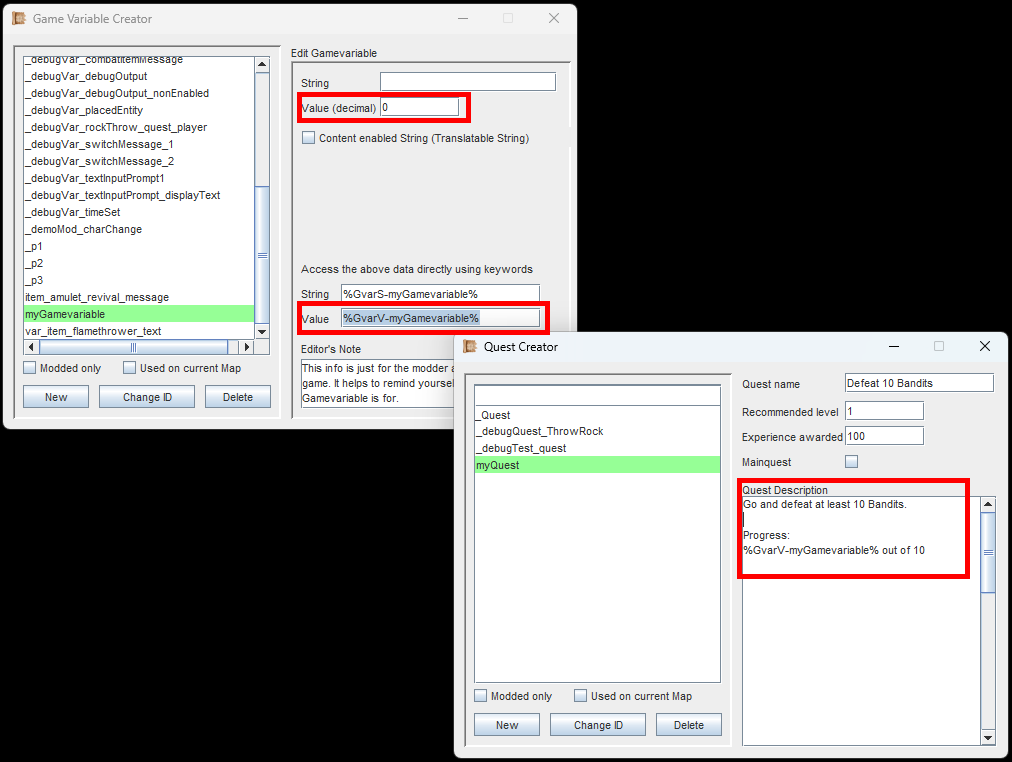
Game Variables can be used as (dynamic) keywords within almost any other text.
Notice the two keyword fields at the bottom. These can be copied and then used in almost any context where text is displayed: Ability names, Item names, Dialogues, Skills etc.
In the example to the left, we use the keyword for the value and copy it into a quest description.
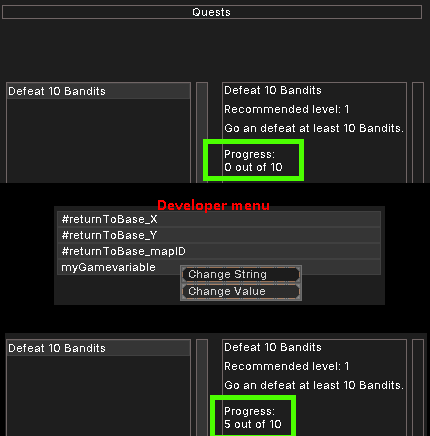
The developer menu allows you to set Gamevariables on the fly.
In-game, the keyword will now appear the actual value. The value can be changed dynamically and the descriptions/texts will update accordingly.
In the image to the left you can see the quest description with the value inside. Since the value wasn't set in the Editor, it is 0 by default.
Using the developer menu, we can test our Game Variable by assigning a new Value or String to it. In this case we changed the Value to 5. As you can see, the quest description updated itself accordingly.
Custom Text Colors
All text inputs support colored text. Be it item names, ability names, effect descriptions, quests, dialogues etc.
To start using color, you need to put down two square brackets and enter a hexadecimal color code, like this: [#112233] . All text coming after this will be colored. To end coloring, just put down two empty square brackets like this: [] .
Usage Example:
"My [#FF11AA]potato salad[] exploded"
"My potato salad exploded"
Custom Color Example
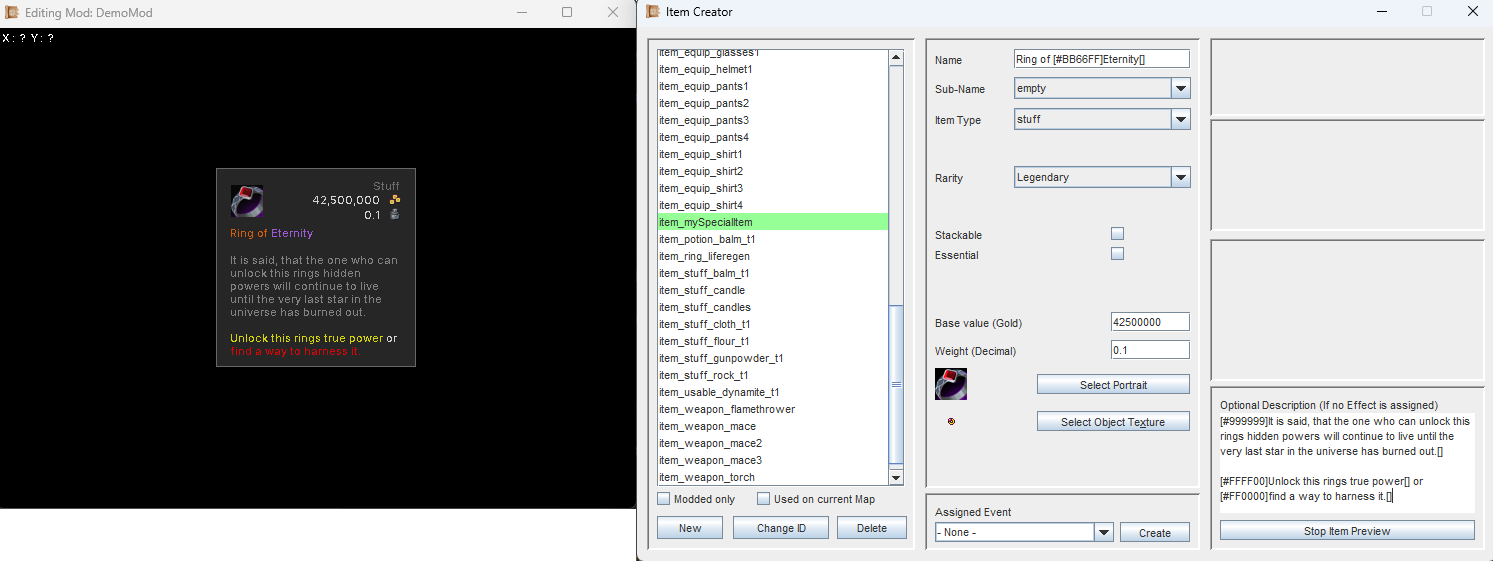
The Item has the 'Legendary'-rarity, which pre-colors the Item Name to orange. But even this can be changed with color codes.
Ring of [#BB66FF]Eternity[]
[#999999]It is said, that the one who can unlock this rings hidden powers will continue to live until the very last star in the universe has burned out.[]
[#FFFF00]Unlock this rings true power[] or [#FF0000]find a way to harness it.[]
If you are following the Guide, continue with Events.