The Editor
Strings & Translations
Reminder: Hover your mouse over almost any input, field, selectionbox or button in the Editor to receive tooltips and examples.
Table of contents
Keywords
Any input field that is used for In-Game displayable text (e.g. Dialogue text, Item descriptions etc.) supports keywords. Keywords allow you to refer to something dynamically.
Example: Instead of mentioning an item by typing its name, you can wrap the ItemID inside a keyword. If you make any change to the item's name in the future, you won't have to backtrack each mention of it.
%player1_name%
%player2_name%
%player3_name%
%player4_name%
Displays the name of the respective player character.
%player1_class%
%player2_class%
%player3_class%
%player4_class%
Displays the class of the respective player character.
%key_up%
%key_down%
%key_left%
%key_right%
%key_interaction%
%key_cancel%
%key_eagleeye%
Displays the respective key that the player is using for the respective functionality.
%key_character%
%key_ability%
%key_skill%
%key_quest%
%key_inventory%
%key_equipment%
%key_crafting%
%key_returning%
%key_groupfollow%
Displays the respective hotkey that the player is using for the respective UI-Button during gameplay.
%GvarS-GameVariableID%
%GvarV-GameVariableID%
Replace the yellow part with the actual ID of a Gamevariable to display the Gamevariable's String or Value.This can be used after an EventBit that dynamically filled the Gamevariable. This way, you can dynamically mention a player's name and class, without knowing their player number.
%(entity)entityID%
%(entity_class)entityID%
Replace the yellow part with the actual ID of an Entity to display it's name or class.
%(ability)abilityID%
Replace the yellow part with the actual ID of an Ability to display it's name.
%(ability)skillID%
Replace the yellow part with the actual ID of a Skill to display it's name.
%(ability)itemID%
Replace the yellow part with the actual ID of an Item to display it's name.
%(ability)effectID%
Replace the yellow part with the actual ID of an Effect to display it's name.
%(ability)questID%
Replace the yellow part with the actual ID of a Quest to display it's name.
Note:
Dialogues and Effects also have additional keywords, but those only work for themselves.
They are explained on their own respective pages.
The String Editor
What is the String Editor? It is a central place for all the Strings (names, classes, descriptions ~ text basically) that your Mod and the game itself have.
Example: You create a new Ability and call it "Fire of Justice". Then the name "Fire of Justice" will also appear in the String Editor, in the "ability" category.
Why would we need the String Editor then? Because here you can make the quickest changes to a lot of Strings in the same place. And best of all: You can export Strings as a list, open them with e.g. Excel, change, re-write or translate them, and import them into the Editor again.
Making a simple change
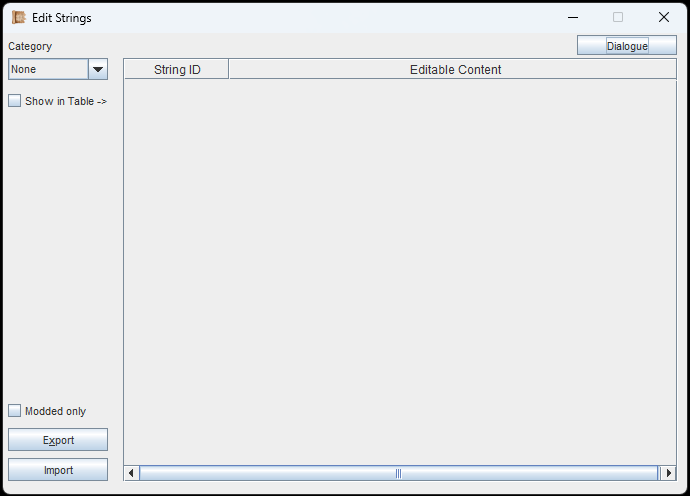
Selecting the category on the top-left is half the work.
When you open the String Editor, you first have to select a String category in the top-left dropdown. This will load all the Strings from that category in a list. However, to view the list, you then have to check the 'Show in Table'-checkbox.
Why the checkbox? Because if you have a lot of Strings, it could take a bit to load them. And if you are only looking to export, you ignore the checkbox and save yourself some loading time.
In our next example though, we want to see the Table, and I have selected the "UI"-category.

In the 'UI'-tab we can make changes to some fundamental texts and keywords in the game.
We are now looking at a table that contains all UI (User-Interface) related Strings. This includes text from the starting screen, the menus, certain words and phrases & more.
The easiest thing we can do here is to click on a cell in the second column (the editable content). Then we make a small change and save.
If we start the game up with our Mod loaded, it will override the vanilla String. If we deactivate our Mod, everything is back as it was. Not too difficult, right?
Only one thing to watch out for: Anything between two %-signs is a variable. Do not edit or translate them. You can move them around within the sentence though. If you delete them, everything still works, but you are missing out on this variable being filled-in by the game.
Exporting Strings
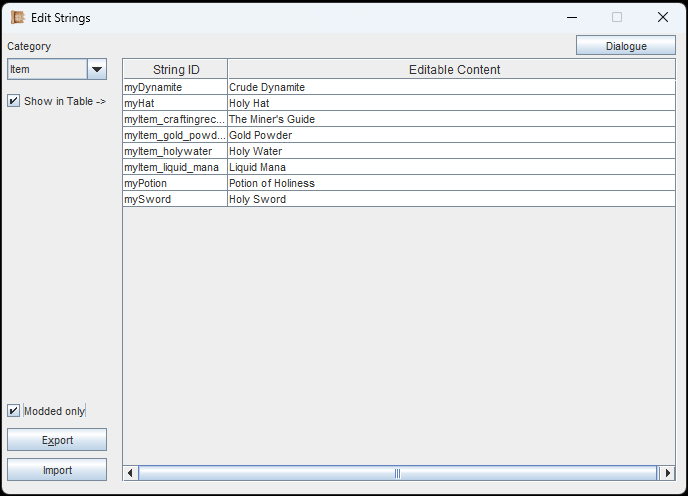
Looking at item names, but only from your own Mod. No vanilla item names will appear, unless you made changes to them. Clicking on 'Export' will export the table contents to a file you can save on your PC.
Let's try something else. This time we select the 'item'-category. This contains all the item-names. I also checked the 'Show in Table'-checkbox.
This time though, I also select the below checkbox 'Modded only'. When this one is active, the table only contains content from your own Mod.
And when exporting the Strings, 'Modded only' does indeed only export your modded content, the contents of the table basically.
Now we click on 'Export'. A prompt opens where we pick the location for the exported file. If its just one, our Desktop will be fine.

The left column must not be edited. The second column can be edited.
The exported file can be opened with a text editor, Microsoft Excel or any other spreadsheet software. For convenience, the file (which is just a text file) has the '.xlsx'-ending. This may confuse Excel, but it will open it regardless.
In the image to the left, you can see the structure. Please do not edit the first column. This will not damage anything, but your import will fail later.
In this example, I changed the words "Gold Powder" into "Aurum Powder".
Importing Strings

The message box will tell you what to do :)
Once we have edited our exported file, we jump back into the String Editor and now click on "Import". The checkbox 'Modded only' does not affect the Import in any way.
A prompt will open in which you select your edited file. A few seconds pass (duration depends on the size of the file) and you should see a message box, like in the image to the left.
If you have made changes to the first column (with the IDs), then your import would fail here, as it cannot find the reference anymore. But even then, nothing will break, so don't worry.
But, if everything worked, you will simply see a success message. The message speaks for itself, so save your Mod to finalize your changes.
Paragraph
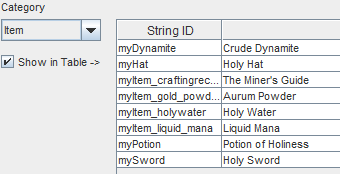
Once you saved your Mod, you should immediately see your changes in the Editor. So, you could open the Item itself, or you can also check in the String Editor again.
In our example, the "Aurum Powder" has been imported.
Editing and exporting Dialogue Strings
The 'Dialogue'-button in the top-right opens a new window for editing & exporting Dialogue Strings.
Dialogues have their own little button, on the top-right of the String-Editor. Why? Because Dialogues are the most text-heavy part of the game and putting all of them into a single, exported file, would create massive loading times, perhaps even overloading your file editor.
Don't worry, there is an easy solution for this.
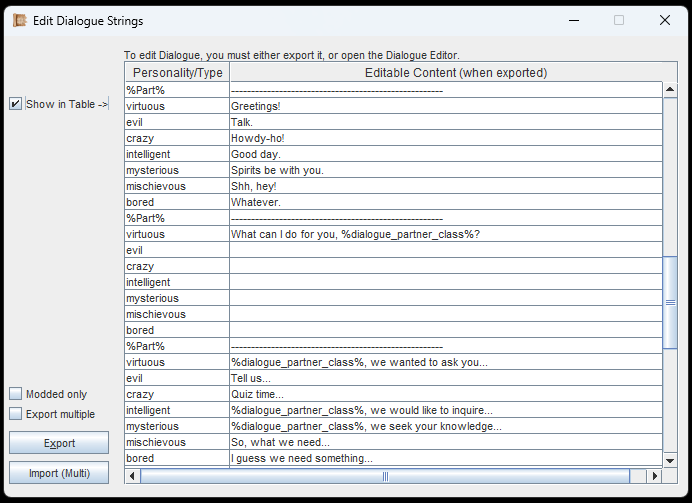
'Show in Table' is not necessary to export anything, so try to avoid clicking it, unless you are sure you want to show everything in the table.
First of all: Use the checkbox 'Show in Table' at your own risk. This will load all the Strings from all Dialogues in the game into the table at once. And this could potentially take a loooong time, depending on how much Dialogue there is.
The much better way is, to just export the Dialogue. I strongly recommend creating a new directory somewhere, where your Dialogue Strings can be exported into.
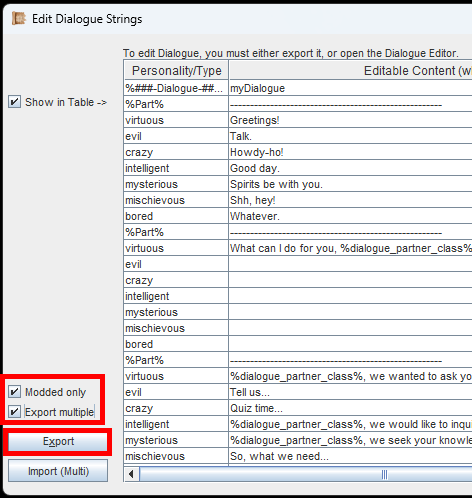
It's recommended to select 'Export multiple', to get one file per Dialogue. This makes everything easier to manage.
If we simply click on "Export", it will export all the Dialogue Strings of the game into a single file. This is possible, but not recommended.
Instead, select "Export multiple", and then "Export". Selecting "Modded only" will, again, only export your own Mod's Strings.
A prompt will ask you for a location. Since this will export as many files as you have Dialogues, you should create a new directory for this.
In any case, even if you face long loading times, you cannot accidentally break anything. Don't worry.
Importing Dialogue Strings
Easy stuff, right?
Importing Dialogue Strings works the same way as with any other String-content. However, you can select one, or multiple files when prompted. Just hold your CTRL-key down and select all the String files you want to import.
Good to know: If you mess up one file (by changing the first column with the Do-Not-Edit stuff), it will not break the other imports.
Once everything is done, just save your Mod and you are good to go!
If you are following the Guide, continue with Mod Cleanup.